Deepfake video call simulations
A deepfake video call simulation is a live, operator-run exercise: an admin joins a real video call (Zoom, Teams, Google Meet, Webex, GoTo Meetings, Slack huddle, WhatsApp, Telegram, or Signal) wearing a real-time face- and voice-swap so they appear and sound like someone the target trusts, a CEO, a board member, an IT admin, and tries to get the target to comply with a request (authorize a payment, hand over credentials, grant access). It is distinct from the Deepfake Videos library, which generates standalone pre-rendered video assets rather than running a live impersonated call. In the console, this feature is labeled Deepfake Video Call in the sidebar.
When you launch a campaign, the platform spins up a dedicated real-time face- and voice-swap session for your workspace, and your browser joins that session so the operator can run the call.
Prerequisites
- Deepfake video calls are a paid feature that must be enabled for your workspace. Trial workspaces can build a campaign in draft but cannot launch it; the launch button shows an upgrade prompt instead.
- Only one live deepfake or voice-impersonation session can run at a time per workspace. The platform checks for an existing session first and blocks with a message like "A deepfake session already exists" or "…is already being used by another admin" if one is active.
- For WhatsApp, Telegram, or Signal delivery, the operator needs an active account on that platform and a mobile device for pairing.
How to use it
- From the console sidebar, open Deepfake Video Call and select Create New Campaign. The campaign list shows every simulation in the workspace, who it impersonates, and whether it is a draft, running or completed.
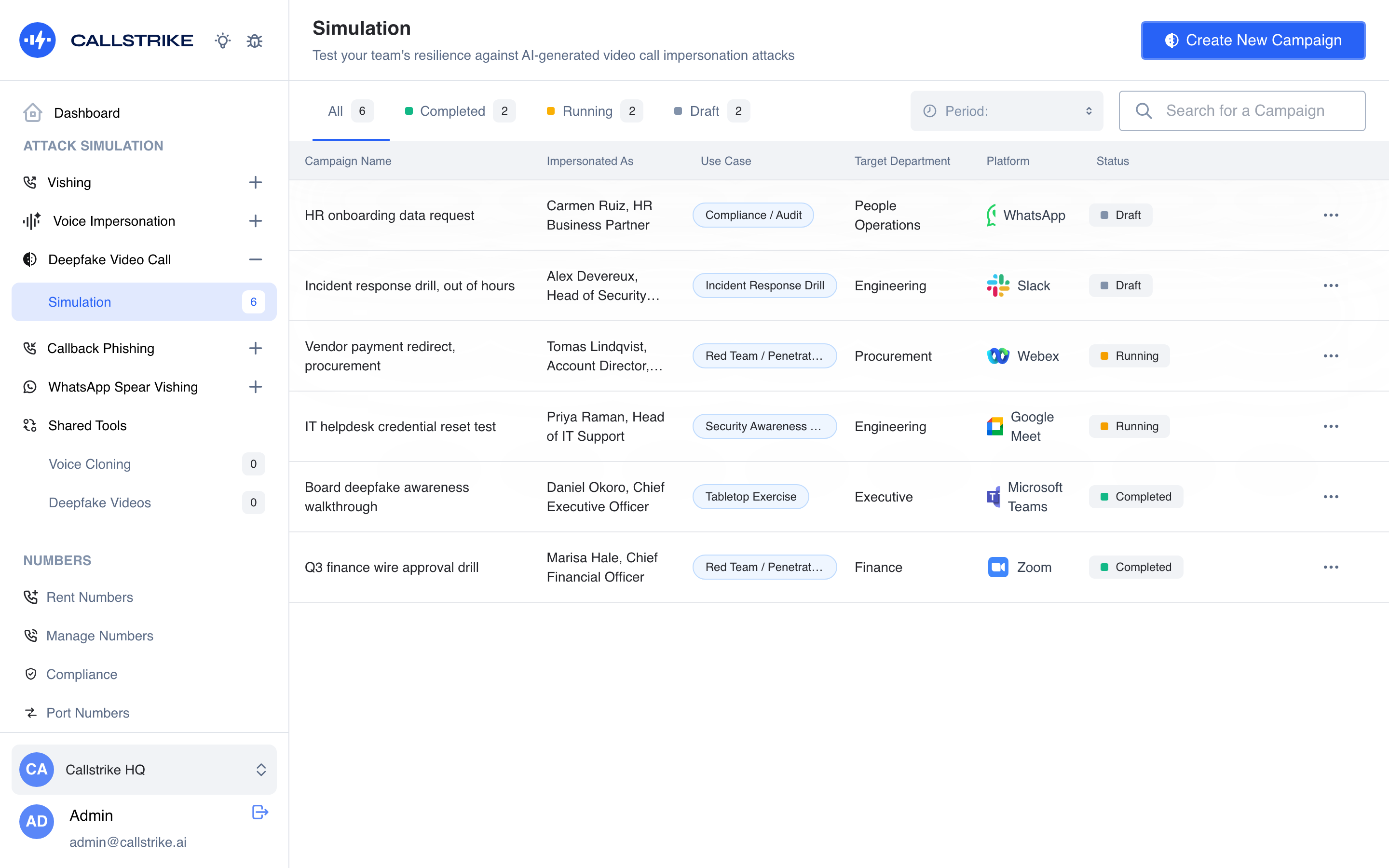
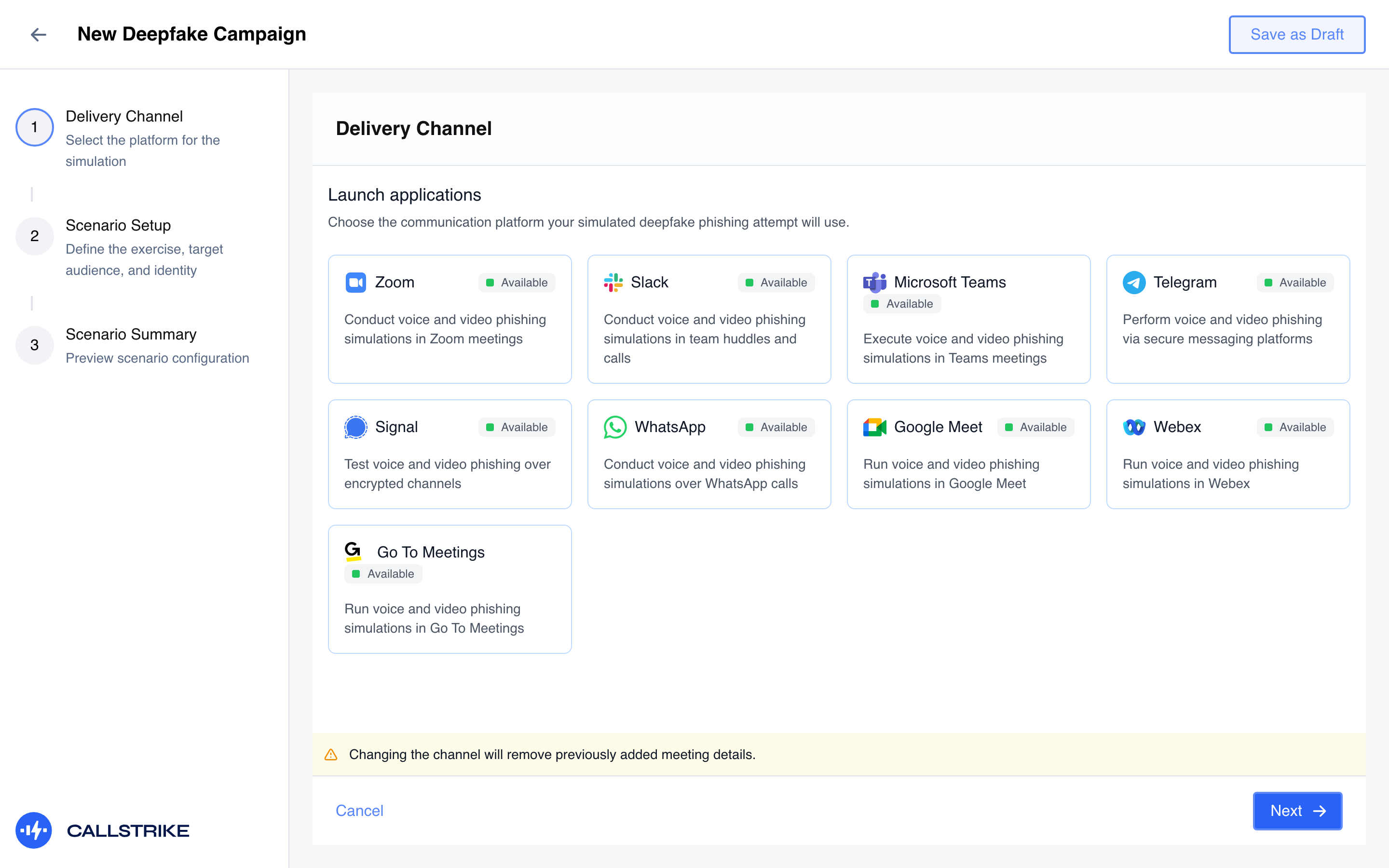
- Delivery Channel: pick the platform the call will run on (Zoom, Slack, Microsoft Teams, Telegram, Signal, WhatsApp, Google Meet, Webex, or GoTo Meetings). For platforms that need a meeting link (Zoom, Teams, Meet, Webex, GoTo Meetings), add the meeting details via the modal that opens. Switching platforms clears any meeting details you already entered.
- Scenario Setup, filled in across four sub-sections:
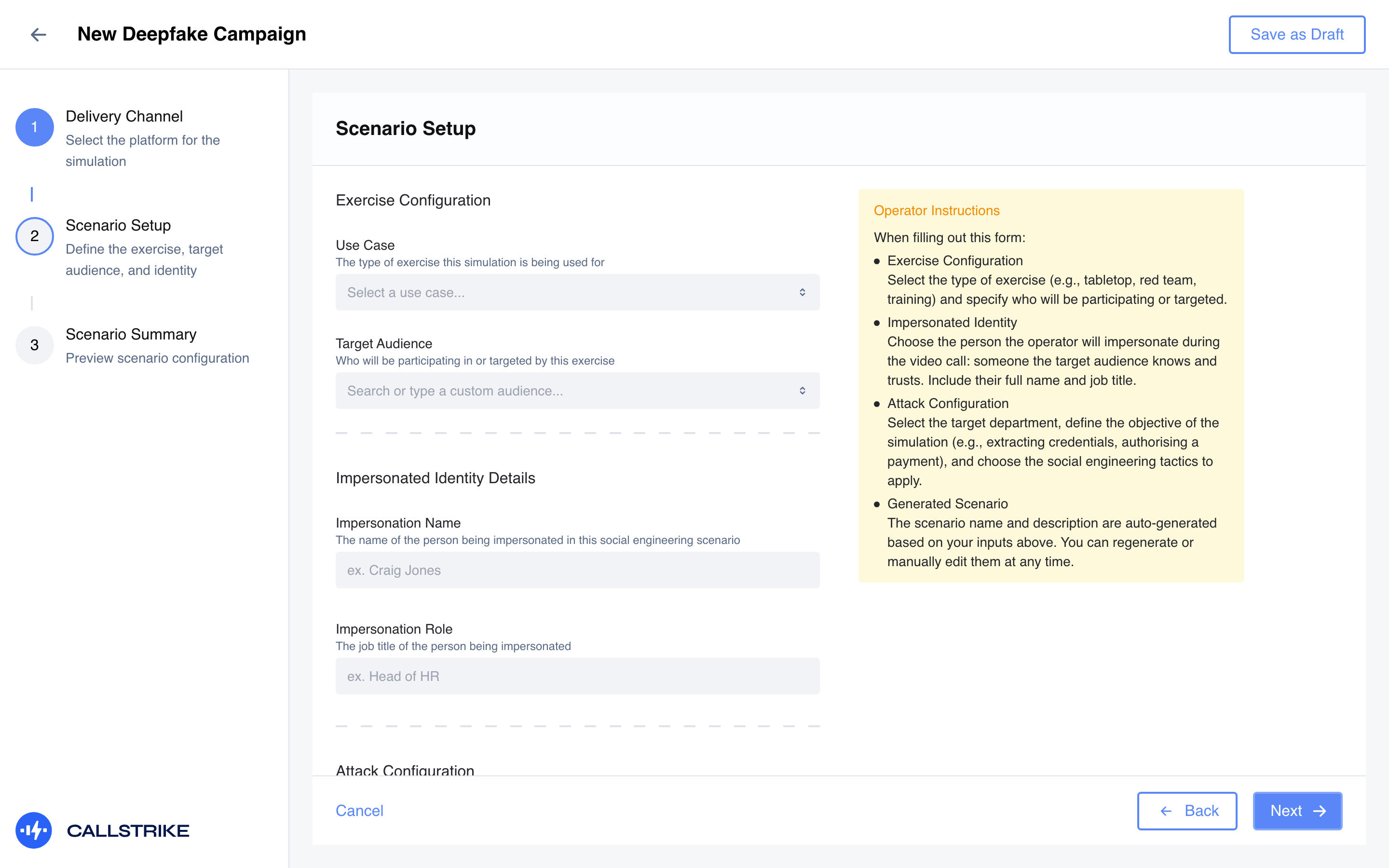
- Exercise Configuration: the use case (Tabletop Exercise, Red Team / Penetration Test, Security Awareness Training, …) and the target audience (pick from a list or type a custom one).
- Impersonated Identity Details: the impersonated person's name and job title (e.g. "Craig Jones", "Head of HR"), someone the target audience knows and trusts.
- Attack Configuration: the target department, the attack objective (wire transfer, credential harvesting, data exfiltration, access provisioning, malware delivery, vendor payment redirect, gift card / crypto purchase, info disclosure, physical bypass), and one or more social-engineering tactics (urgency, authority, pretexting, familiarity, fear, helpfulness, confidentiality, technical jargon, reciprocity, social proof).
- Generated Scenario: an AI-drafted scenario name and description built from the fields above; regenerate with the wand icon or edit manually.
- Scenario Summary: review the configuration, then Launch. This creates or updates the campaign and requests browser notification permission so you're alerted when the live session is ready.
- Once the session is ready, the operator joins the live session UI (face and voice swap active) and conducts the call on the chosen platform.
- After the call, log the outcome: an operator fills in the Target Vulnerability assessment (outcome + vulnerability level + a written observation), optionally using AI to draft the summary from the scenario and outcome.
- Call recordings appear on the campaign detail page (thumbnail + duration per recording) for later review.
What the operator sees on each channel
When the live session opens, the operator is looking at one of the screens below: the delivery application at its very first page, with no address bar and no tabs. These are the real screens, and the marked area is the control that gets you into the meeting. The session itself shows the same guidance, in the same words, the first time you use a channel, so nothing here is a paraphrase of what you will be told in the product.
Where a channel keeps that control behind a click, both screens are shown, in the order you meet them.
Zoom
Screens captured 25 August 2026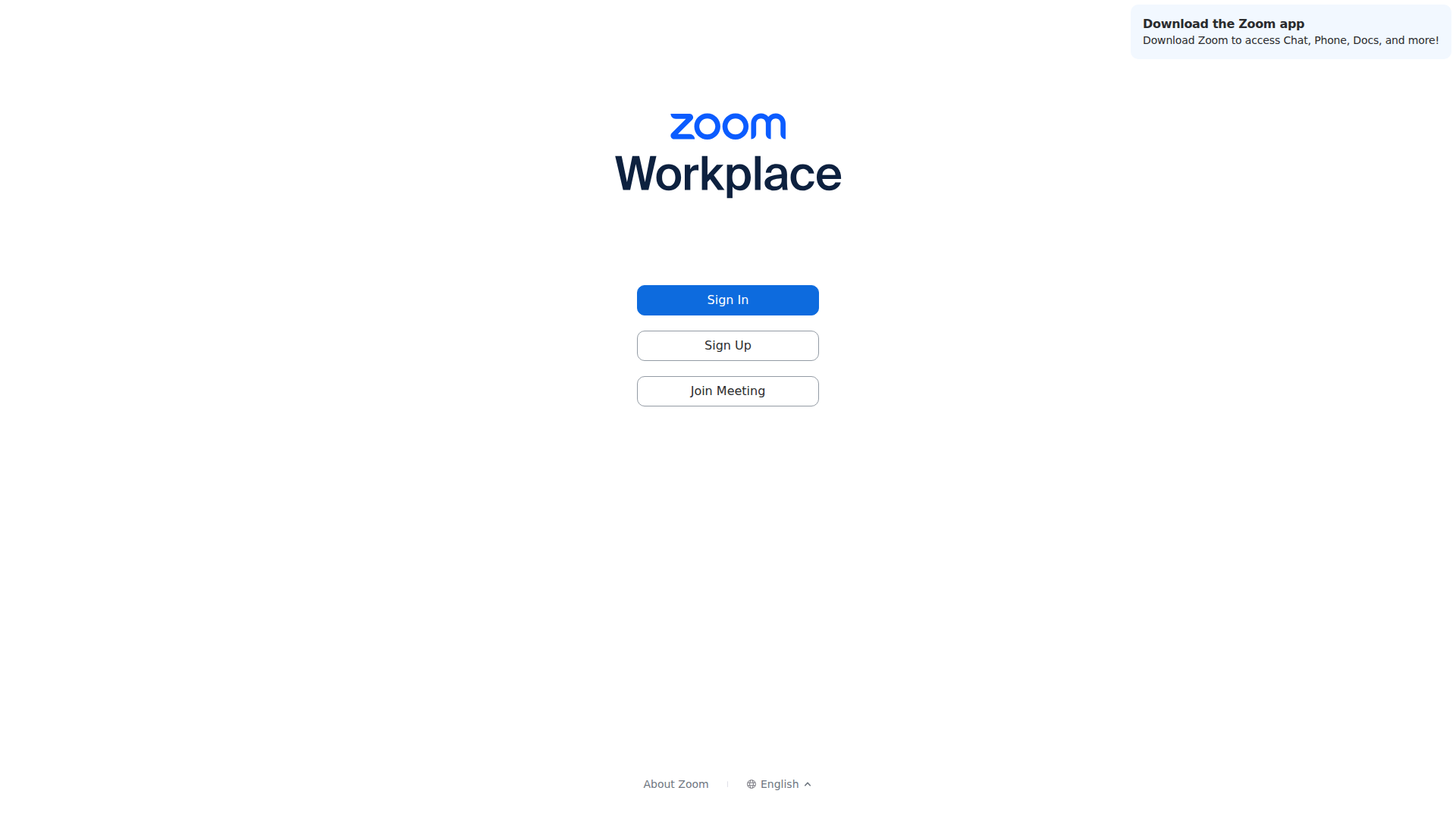
Step 1 of 2Choose Join Meeting
Click Join Meeting, the third button. Sign In is for a Zoom account you do not need.
Alternative: Sign In only if you are hosting the call from an account of your own.
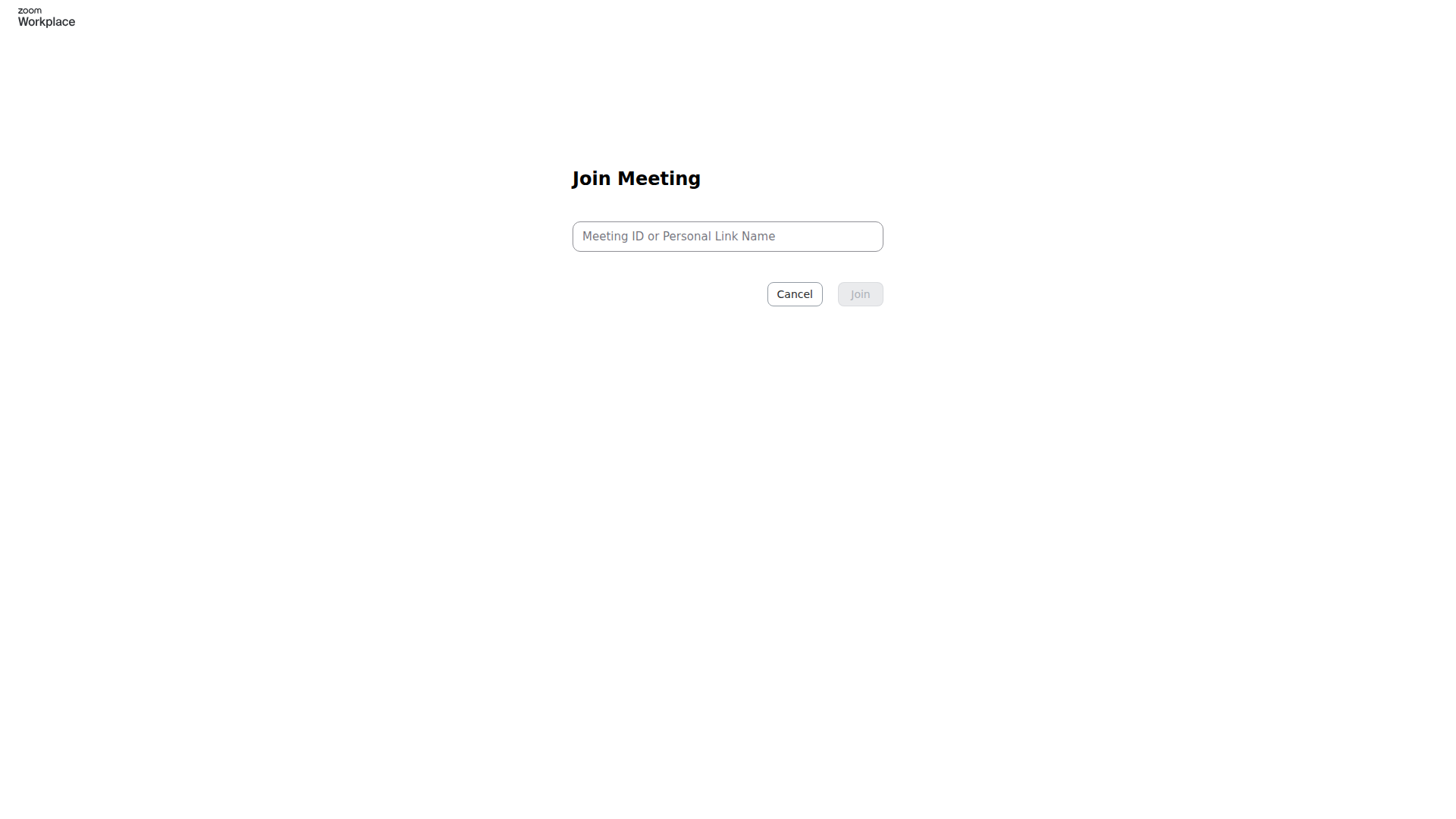
Step 2 of 2Enter the meeting ID
Type the meeting ID or personal link name from the invite, then click Join.
Alternative: The numeric ID from a Zoom invite link works here without the rest of the URL.
Microsoft Teams
Screens captured 25 August 2026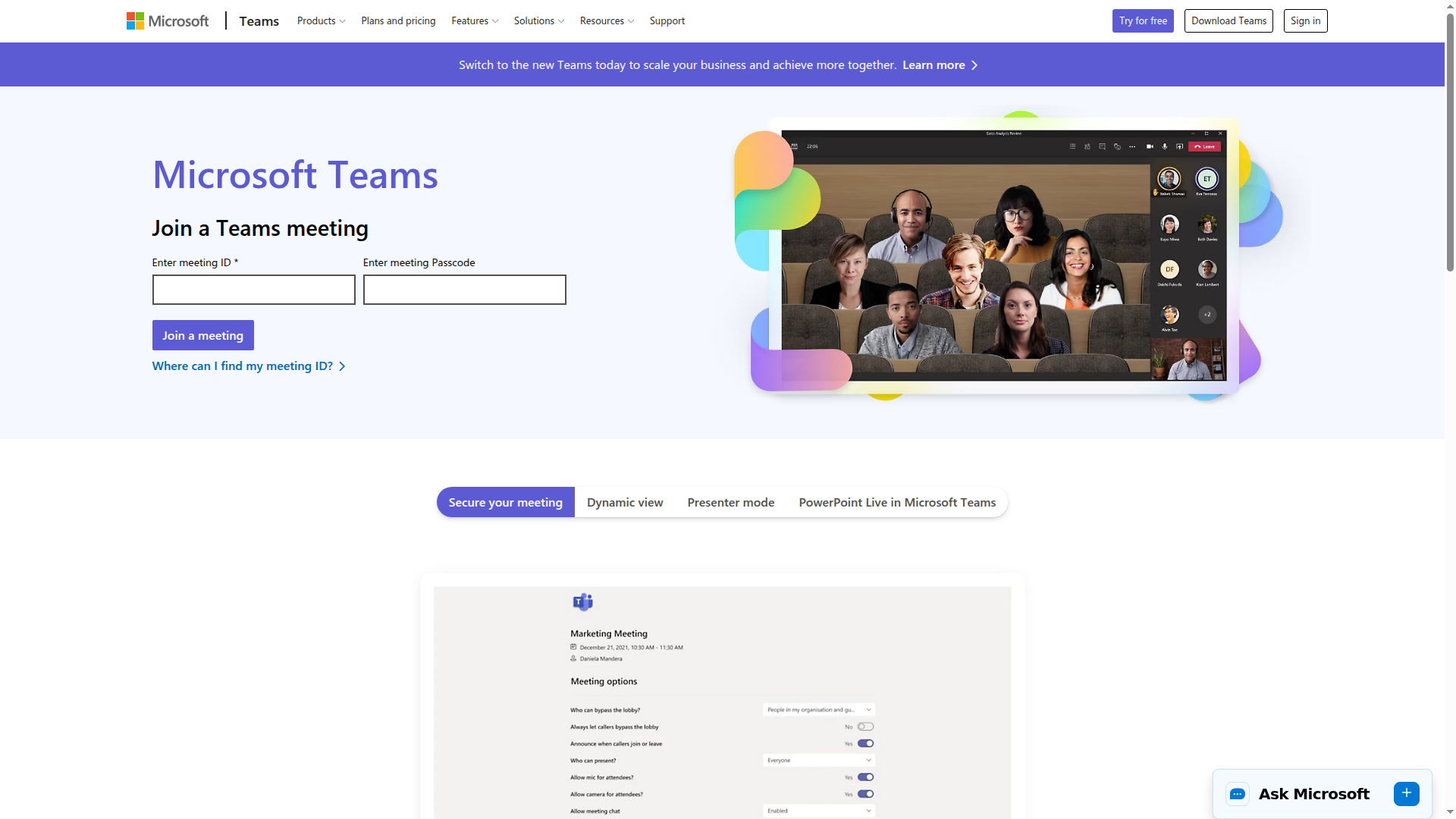
Enter the meeting ID
Type the meeting ID into the first box, and the passcode into the second if the invite has one, then click Join a meeting.
Alternative: Both values are at the bottom of a Teams invite, under "Meeting ID" and "Passcode".
Google Meet
Screens captured 25 August 2026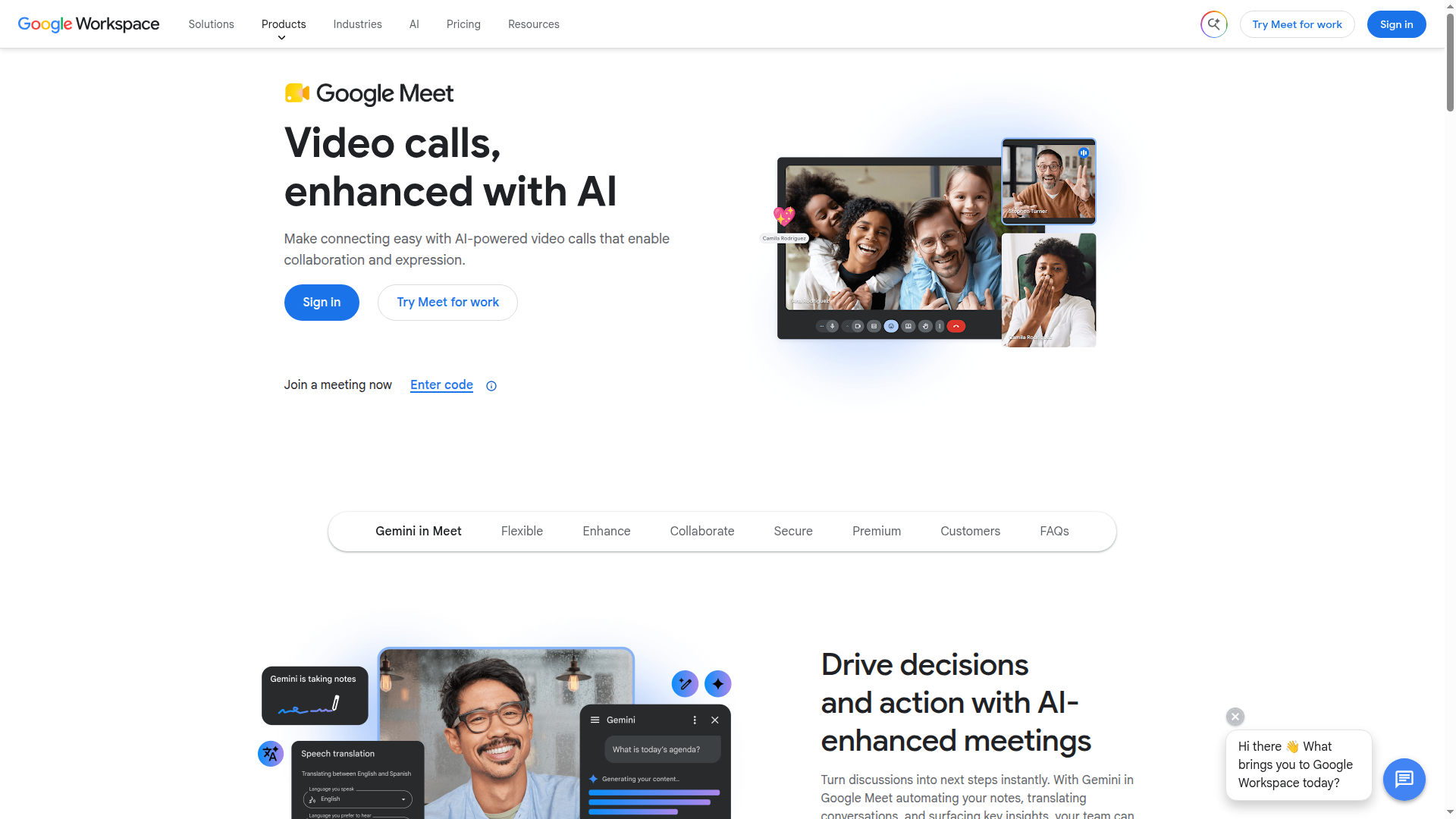
Step 1 of 2Find the join-by-code link
Ignore the big blue Sign in button. Next to "Join a meeting now", click the small "Enter code" link.
Alternative: Or click Sign in and use the Google account you are impersonating, then join from its Meet home page.
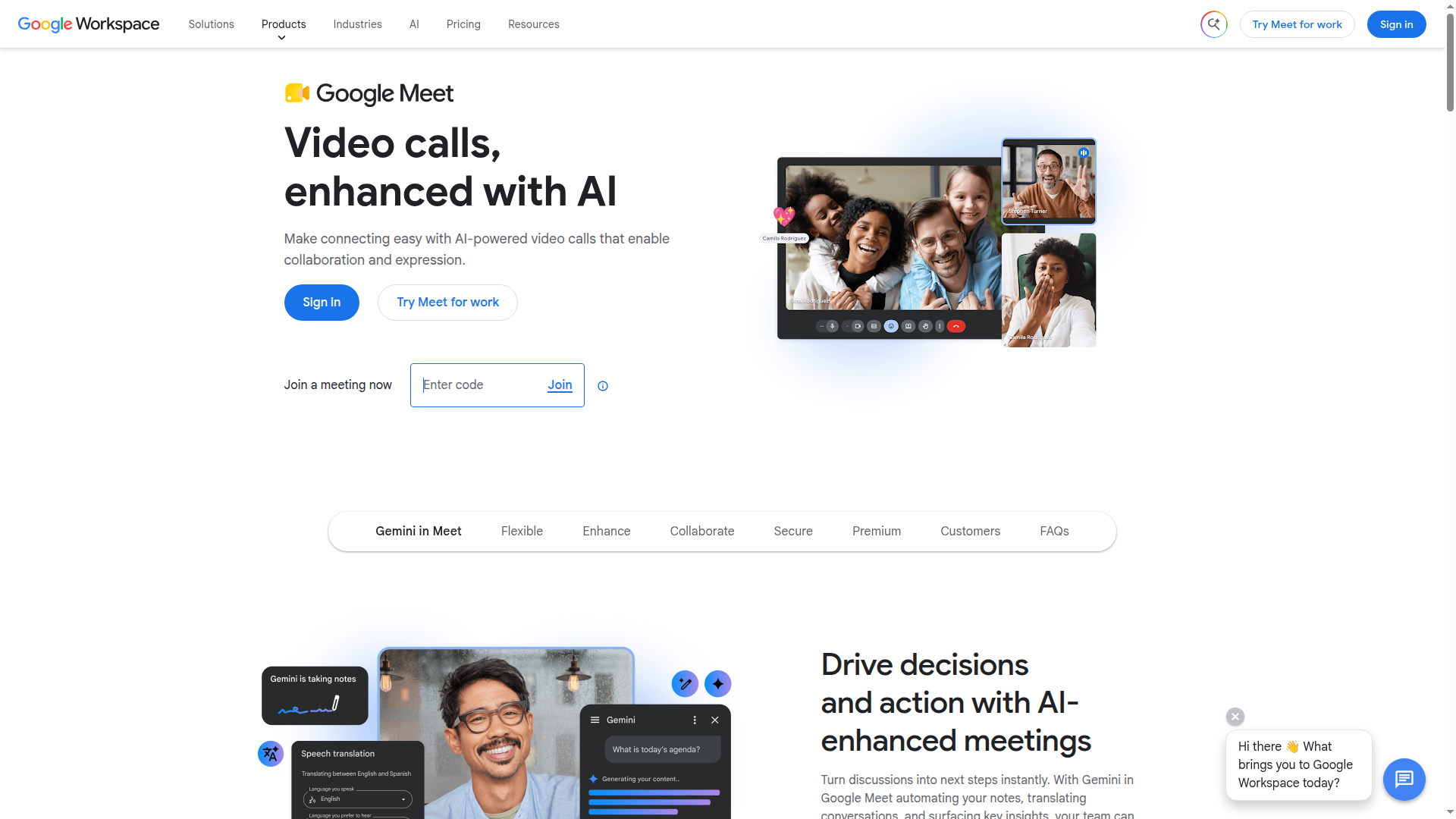
Step 2 of 2Type the meeting code
Type the meeting code from the invite into the box, then click Join.
Alternative: A full meet.google.com link works here too, not just the short code.
Webex
Screens captured 25 August 2026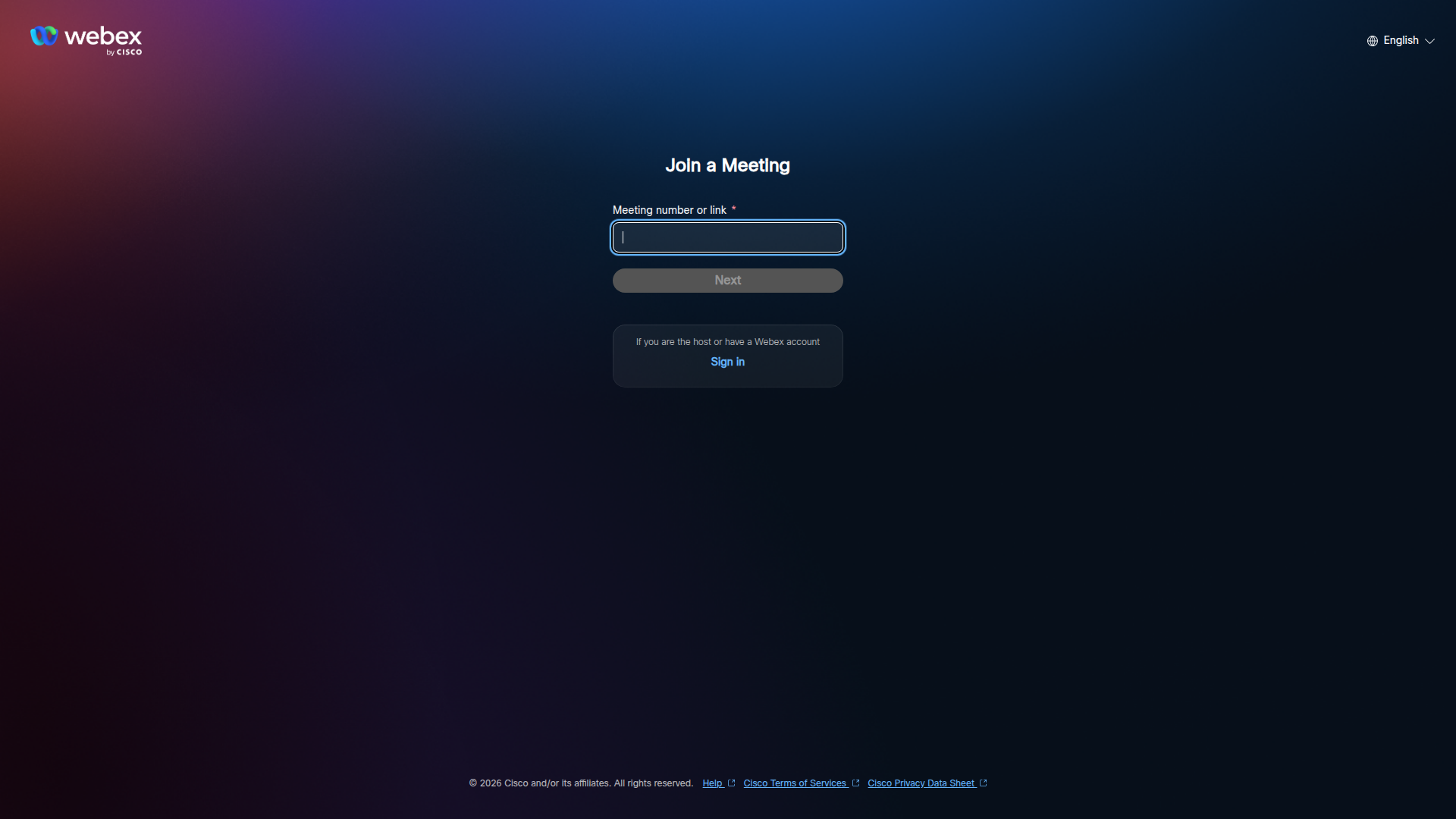
Enter the meeting number
Type the meeting number or paste the full meeting link into the box, then click Next.
Alternative: Sign in underneath only if you are the host of the meeting.
GoTo Meetings
Screens captured 25 August 2026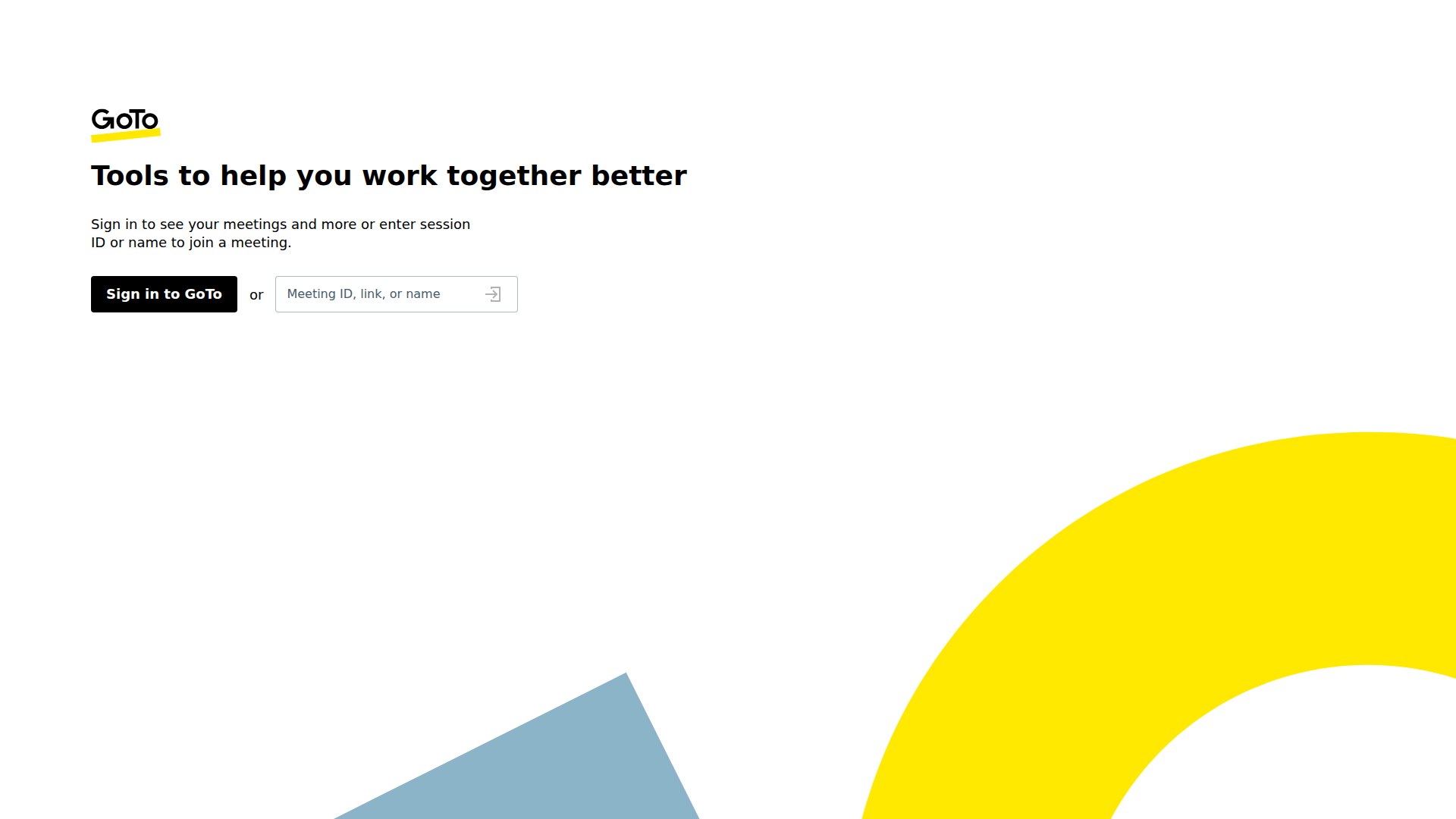
Enter the meeting ID
Type the meeting ID, link or name into the box on the right and press Enter. You do not need to sign in.
Alternative: Sign in to GoTo only if you are hosting from your own account.
Slack
Screens captured 25 August 2026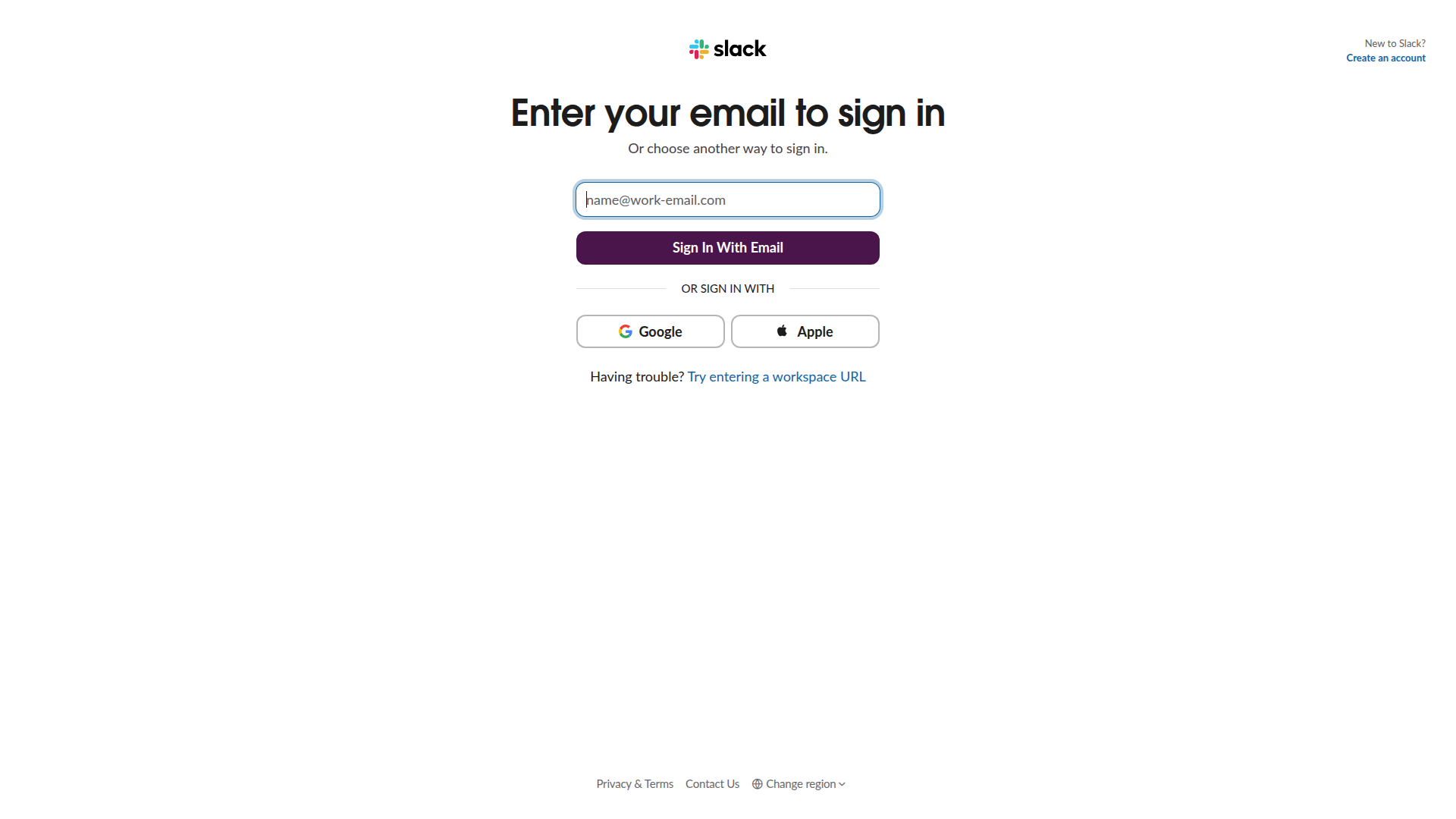
Sign in to the workspace
Slack has no join-by-code. Enter the email address of the account you are using and click Sign In With Email, then use the code Slack sends.
Alternative: "Try entering a workspace URL" underneath is the route in when you know the workspace but not the email.
Telegram
Screens captured 25 August 2026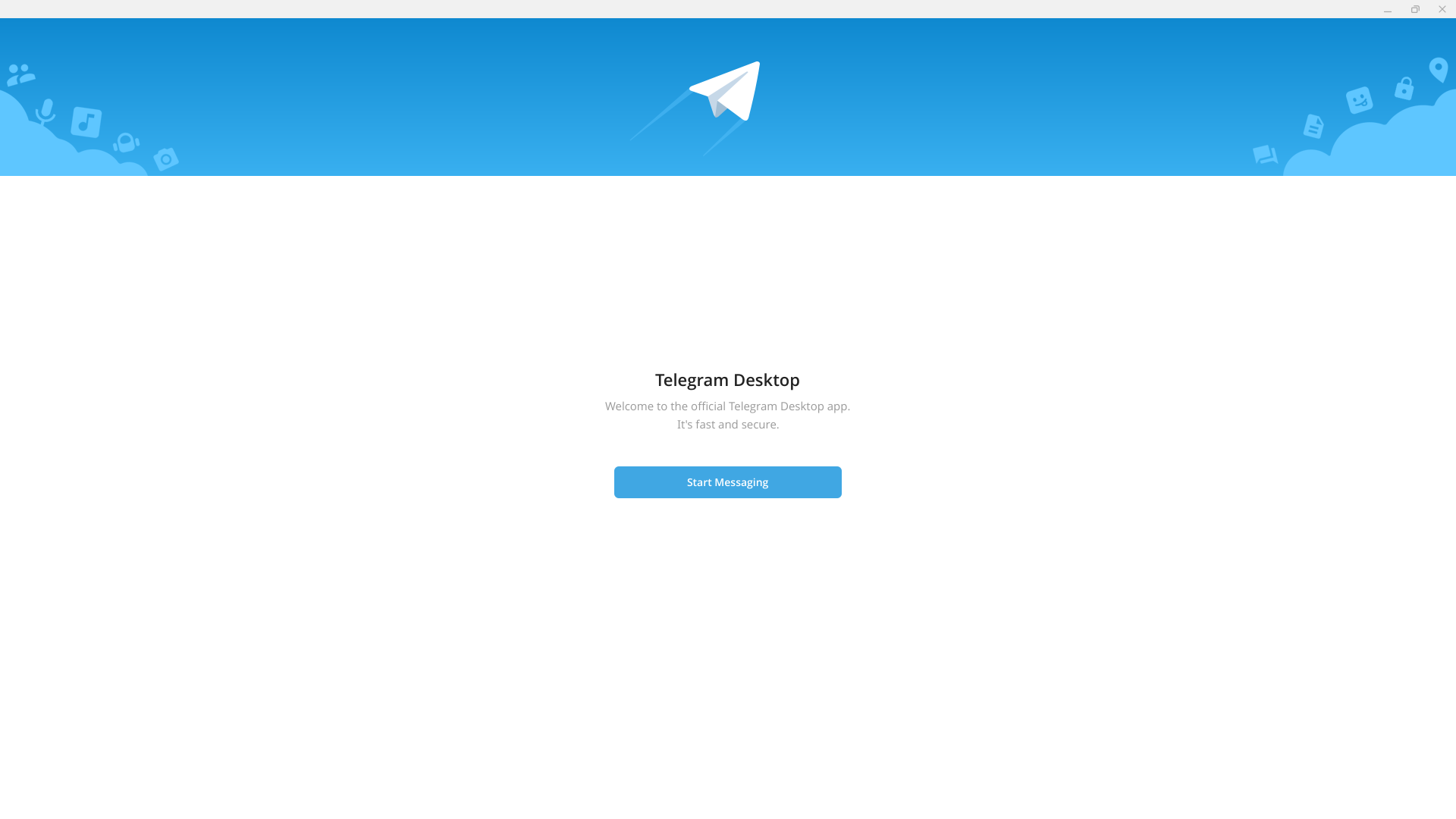
Step 1 of 2Start the sign-in
Click Start Messaging. Nothing is sent to anyone; this only opens the sign-in screen.
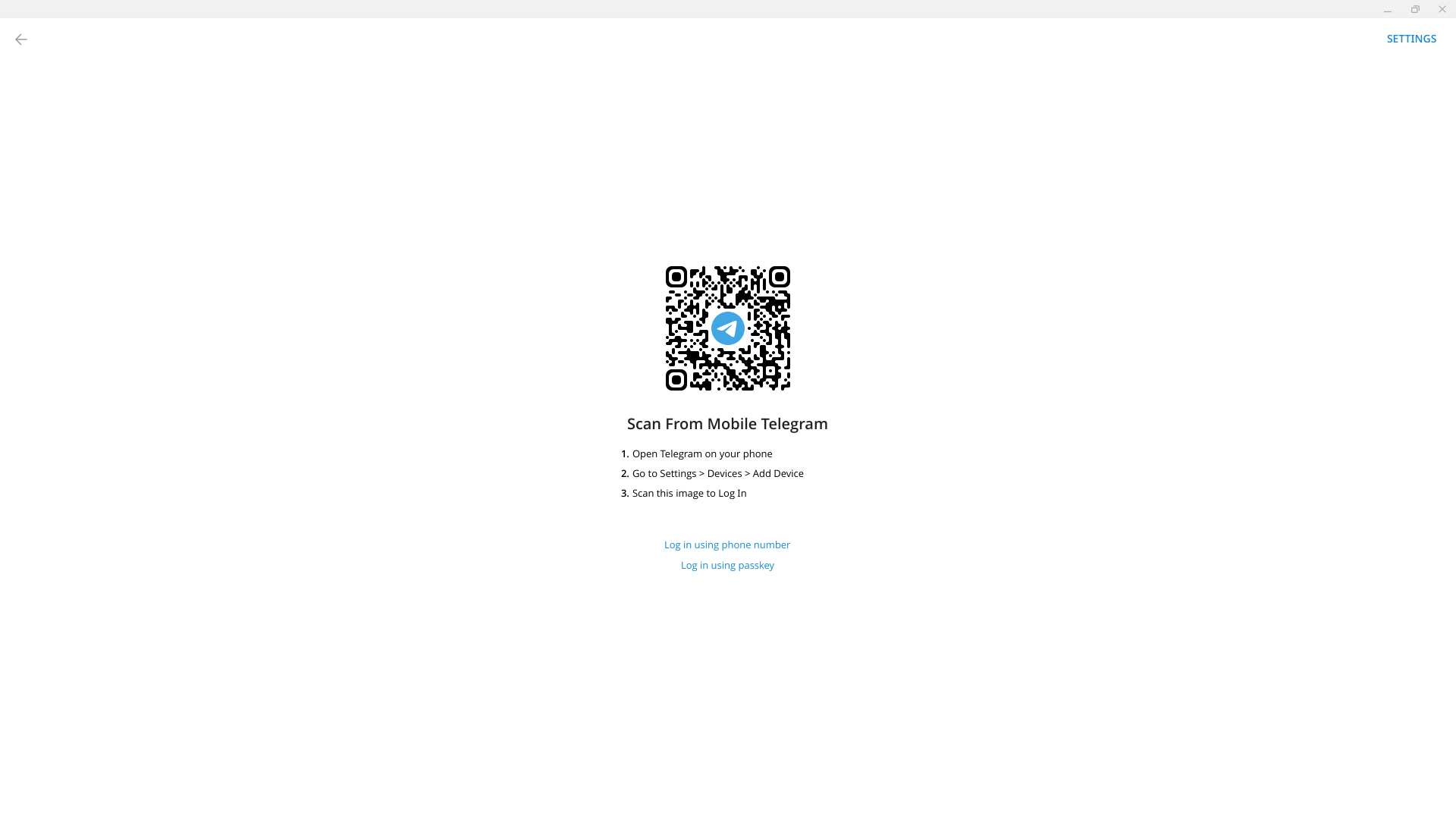
Step 2 of 2Pair your phone
On your phone, open Telegram, go to Settings then Devices then Add Device, and scan this code.
Alternative: "Log in using phone number" underneath takes an SMS code instead of the QR.
Signal
Screens captured 25 August 2026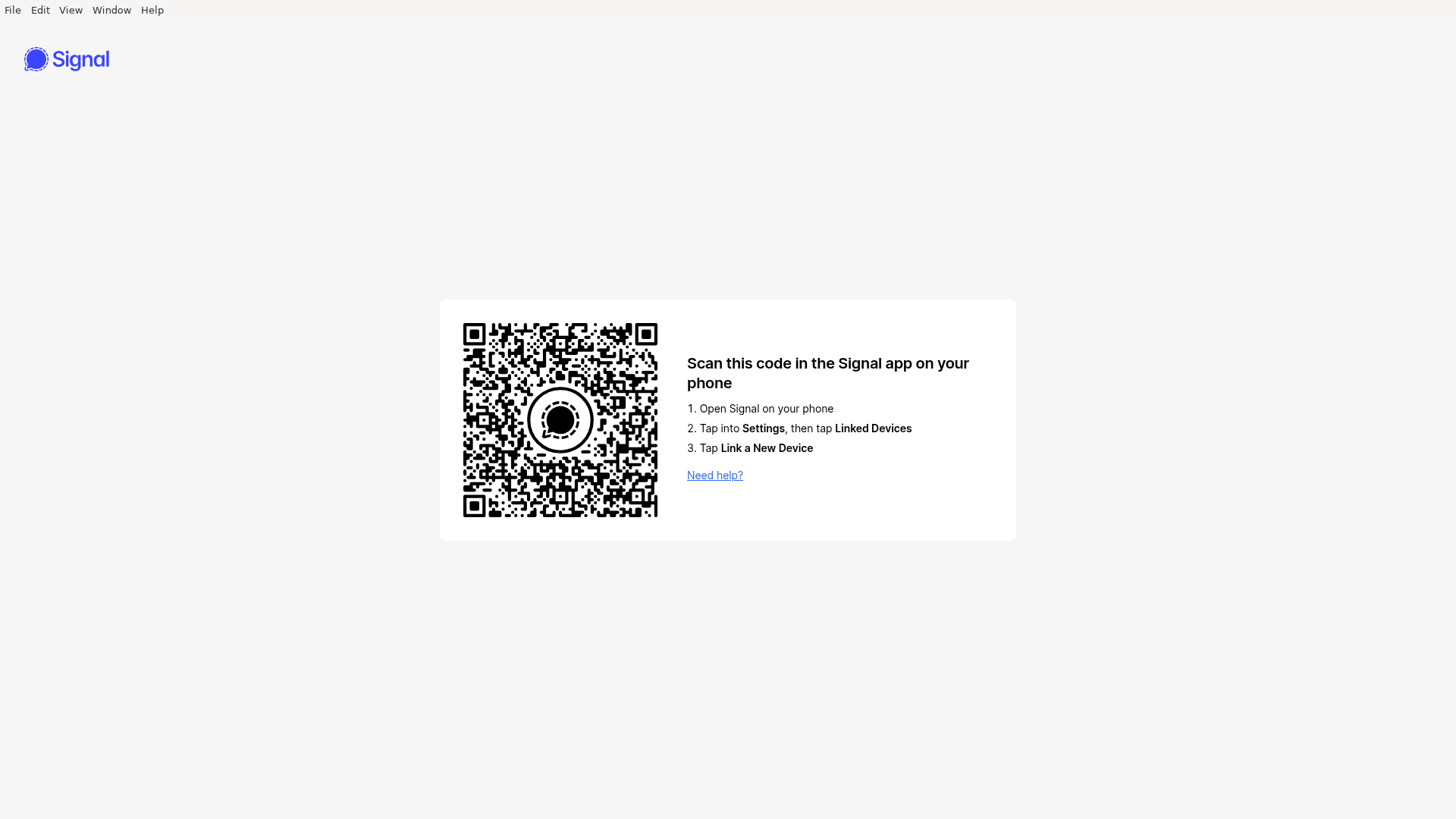
Pair your phone
On your phone, open Signal, go to Settings then Linked Devices, tap Link a New Device, and scan this code.
Alternative: Signal has no phone-number fallback here. The device must be linked from the phone app.
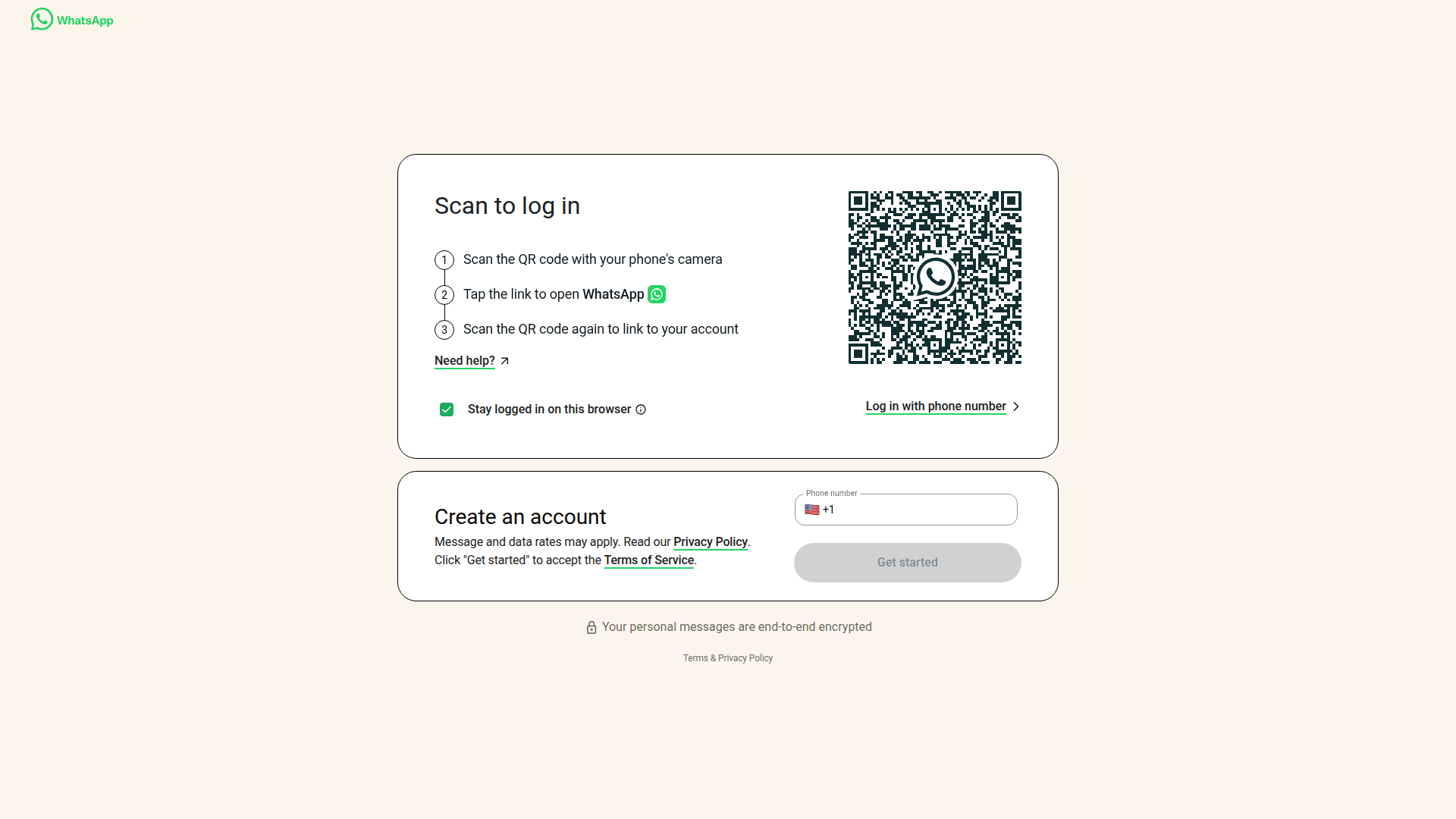
Pair your phone
On your phone, open WhatsApp, go to Settings then Linked Devices, tap Link a Device, and scan this code. The code refreshes, so scan the one on screen.
Alternative: "Log in with phone number" gives you a typed code instead, if the camera route fails.
Configuration & options
| Platform | Needs meeting details | Needs an active account + mobile pairing |
|---|---|---|
| Zoom | Yes | No |
| Microsoft Teams | Yes | No |
| Google Meet | Yes | No |
| Webex | Yes | No |
| GoTo Meetings | Yes | No |
| Slack (huddle/call) | No | No |
| Telegram | No | Yes |
| Signal | No | Yes |
| No | Yes |
| Field | What it does |
|---|---|
| Use case | Frames why the exercise is run (tabletop demo, red-team attack, awareness training, …) |
| Target audience / department | Who the scenario is aimed at, for reporting and targeting |
| Impersonated name / title | Identity the operator wears via the face and voice swap |
| Attack objective | The compliance outcome the exercise is testing for |
| Social engineering tactics | Multi-select tags describing the pressure techniques used |
Gotchas & limitations
- This is a live, human-operated call, not an autonomous AI call: an admin has to actually join and run the session in real time (unlike the fully-automated AI vishing calls). Budget operator time accordingly.
- Shared live-session slot. Deepfake and voice-impersonation campaigns draw from the same single live-session slot per workspace; you can't run a deepfake call and a voice-impersonation call at the same time, and a second admin can't join a session someone else already started.
- Leaving the tab ends or cancels the session. Closing the browser tab or navigating away tears the live session down: if it already produced a recording it is ended, otherwise it is cancelled. Don't rely on just closing the tab to pause and resume later.
- Trial workspaces can draft but not launch: attempting to launch on a trial workspace shows an upgrade prompt instead of provisioning a session.
- Changing the delivery platform wipes meeting details you'd already entered for the previous platform, a banner warns about this in the Delivery Channel step.
- WhatsApp, Telegram and Signal require the operator to have an active account and a paired mobile device; there's no headless path for those three channels. WhatsApp opens web.whatsapp.com in the session browser and is paired by scanning its QR code, and that pairing does not carry over to the next session.
Troubleshooting / FAQ
Why can't I launch my campaign? Either the workspace is on a trial plan (draft-only), or another deepfake or voice-impersonation session is already active for this workspace, only one live session can run at a time, and only the admin who started it can use it until it ends.
I switched the meeting platform and my meeting link disappeared, is that a bug? No, switching the delivery channel intentionally clears previously entered meeting details, since a different platform needs a different link/format.
Do I need anything installed to run WhatsApp, Telegram or Signal simulations? Yes, those three channels require an active account on the platform and a mobile device for pairing; the other channels (Zoom, Teams, Meet, Webex, GoTo Meetings, Slack) don't.