How a deepfake video call runs
Everything on this page is true whatever platform you run the call on. The six channel pages cover only what differs: how you get into the call, and what goes wrong there.
A deepfake video call is operator run. Someone on your team joins a real call wearing a real-time face and voice swap, and works the scenario live. It is not an automated call that runs while you do something else, and the operator's attention is the scarce resource in the whole exercise. Budget for it.
How you get into the call is your decision
Callstrike puts an operator into a video call wearing someone else's face. It does not decide whose call, or how the operator got there. That is a judgement you make per exercise, and it changes the exercise far more than anything in the wizard:
- Host the meeting yourself and invite the targets. You control the time, who is in the room, and when the reveal happens. Nobody is surprised into a call they did not agree to attend. This is the usual shape for awareness training, and the easiest to run cleanly.
- Join a meeting you were invited to. The operator has a legitimate invite, usually because the exercise was arranged with someone inside the team. The pretext is that the persona is simply attending a meeting they were expected at.
- Join a meeting you were not invited to. The operator has a code or link obtained the way a real attacker would. This is red teaming, it is the most realistic, and it is the one that needs authorisation in writing before it happens, naming who may be targeted and what is out of scope.
The three differ in who consented to what, not in how the product works. An awareness session where everyone knows a deepfake is coming and a red team engagement where nobody does are both legitimate, and both are run from this same screen. Decide which you are doing, write it down, and make sure the person who authorised the exercise agrees with your reading.
⚠ Whichever shape you pick, the target is a real person who will be recorded reacting to a deception. In several jurisdictions the disclosure is not optional. See AI Act compliance.
Before you start
- The feature has to be enabled for your workspace. A trial workspace can build a campaign and save it as a draft, but pressing Launch shows an upgrade prompt instead of starting a session.
- One live session at a time, per workspace. Deepfake video calls and voice impersonation calls draw on the same slot. If one is running, the second attempt is refused, and only the admin who started a session can use it.
- Two operators cannot share a session. If someone else in your workspace has one open, you wait for them to finish.
- Three channels need an account and a phone. WhatsApp, Telegram and Signal are joined from an account you already hold, paired from a mobile device in the room. The other channels need neither.
1. Build the campaign
Open Deepfake Video Call in the console sidebar and choose Create New Campaign. The wizard is three steps.
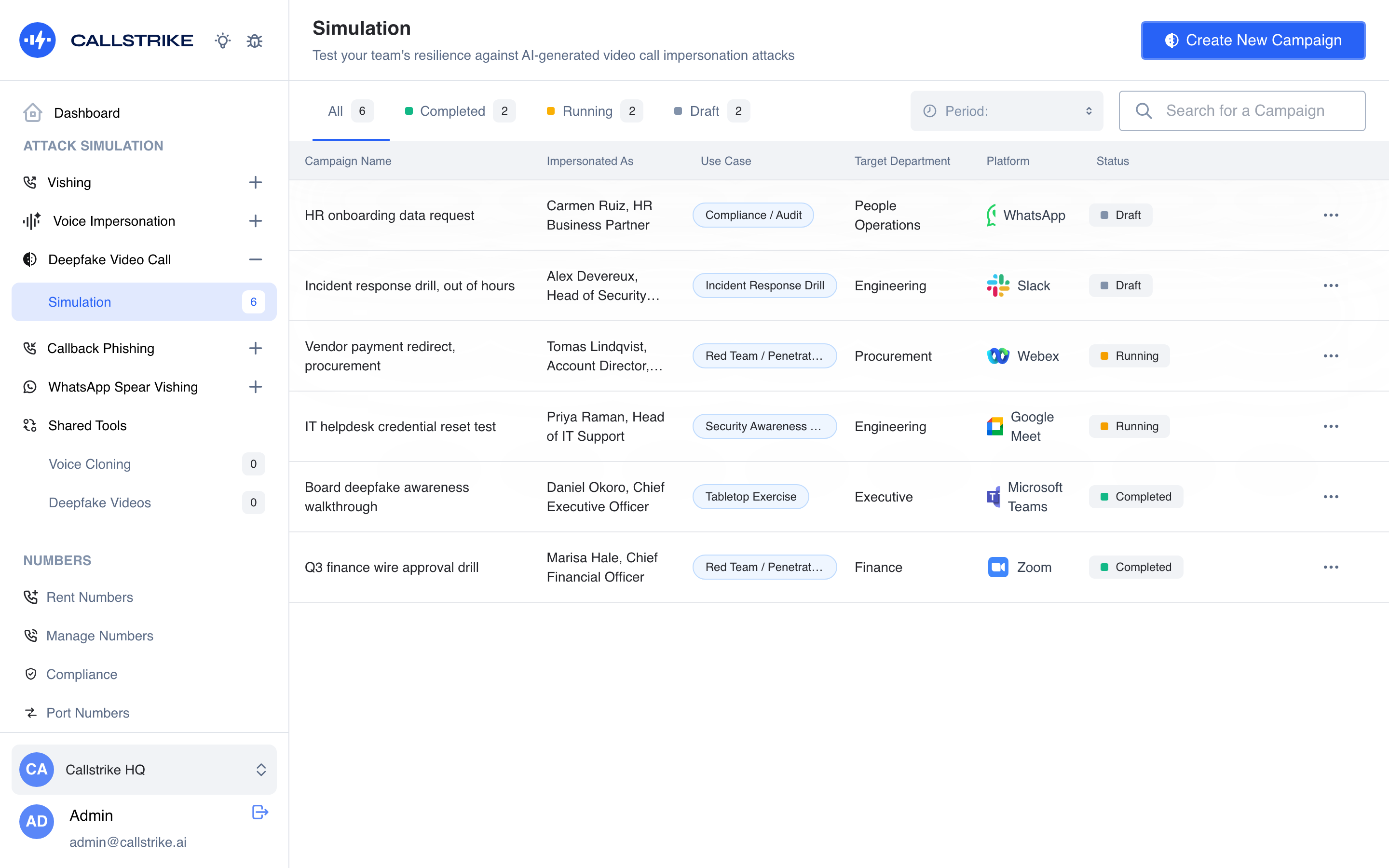
Delivery Channel
Pick the platform. Zoom, Microsoft Teams, Google Meet, Webex and GoTo Meetings offer a place to paste the meeting's joining details; Slack, WhatsApp, Telegram and Signal do not, because there is nothing to paste.
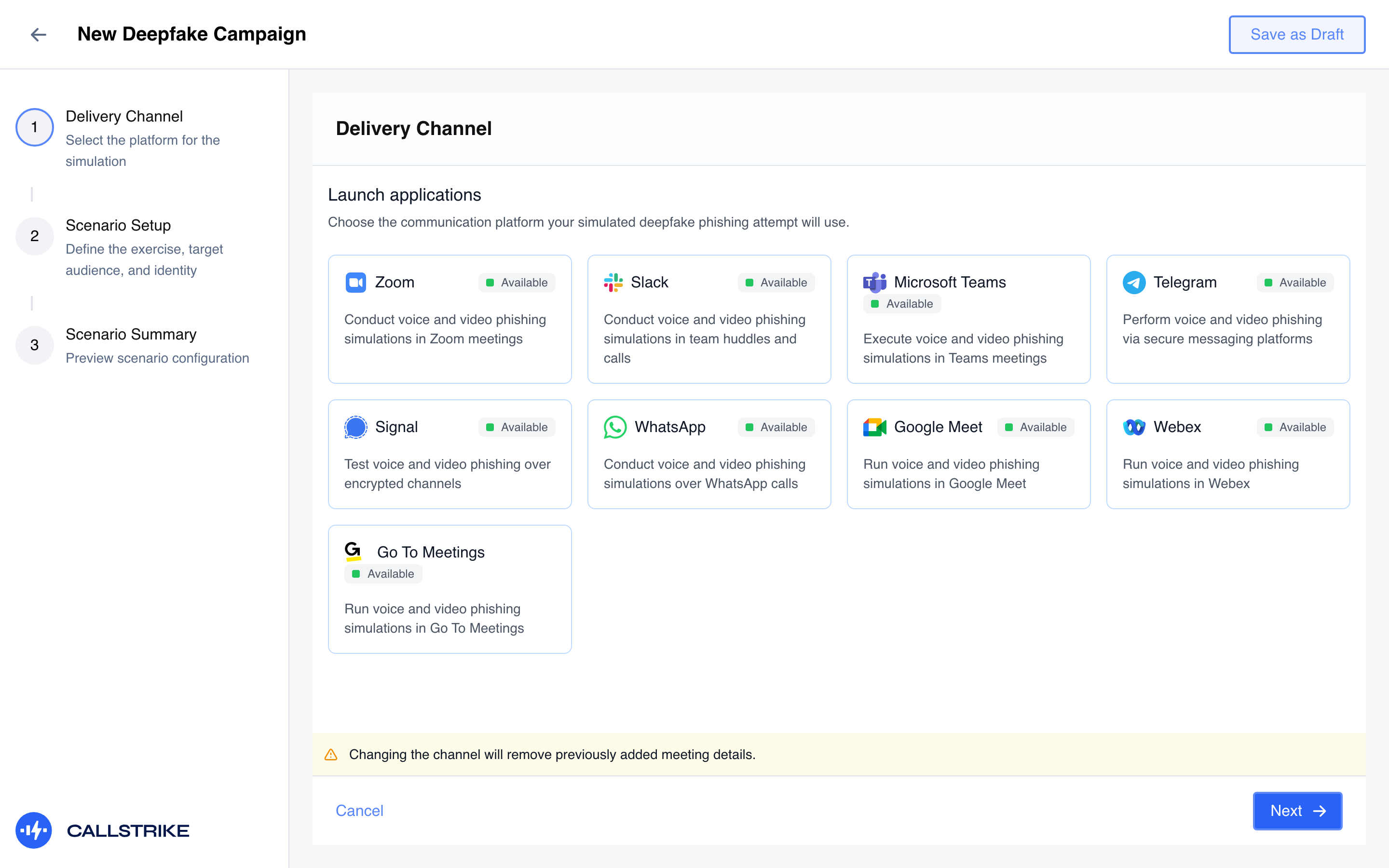
Those details are one free text note, and they are optional. It is not a link field and it is not validated: whatever you type is shown back to you as a floating note during the call, so you are not hunting through a calendar invite with a live meeting on screen. Paste the meeting ID and passcode, or the code, or nothing.
⚠ Changing the channel clears the note. A warning bar says so once you have entered something. It is deliberate: a Zoom meeting ID is not a Meet code, and carrying one across would give you a note that is confidently wrong.
Scenario Setup
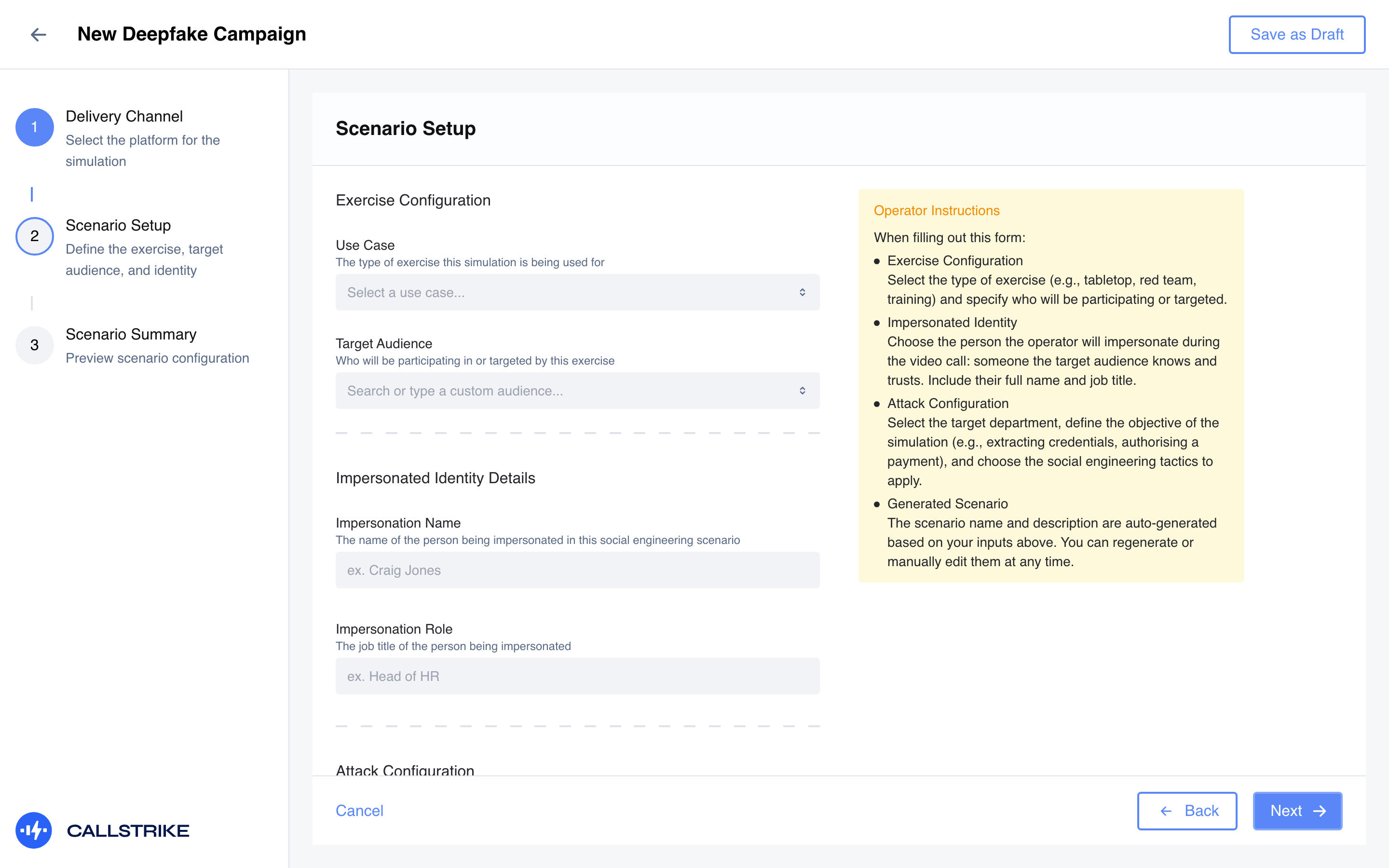
Four groups of fields, and between them they are the exercise:
- Exercise configuration. The use case (tabletop exercise, red team test, awareness training) and the audience. The use case is what the report is framed as afterwards.
- Impersonated identity. The name and job title the operator will wear. Someone the target knows and has reason to defer to.
- Attack configuration. The target department, the objective (a wire transfer, credentials, data, access, a vendor payment redirect), and the pressure tactics in play: urgency, authority, familiarity, confidentiality, and so on.
- Generated scenario. A drafted name and description built from everything above. Regenerate it, or write over it. It is a starting point, not an output.
Scenario Summary
Read it back, then Launch. The browser asks permission to send notifications, because the next part takes long enough that you will not sit and watch it.
2. The wait
Launching provisions a dedicated session for your workspace. It usually takes about four minutes. When capacity is short the platform tries other regions, and the wait can reach about ten.
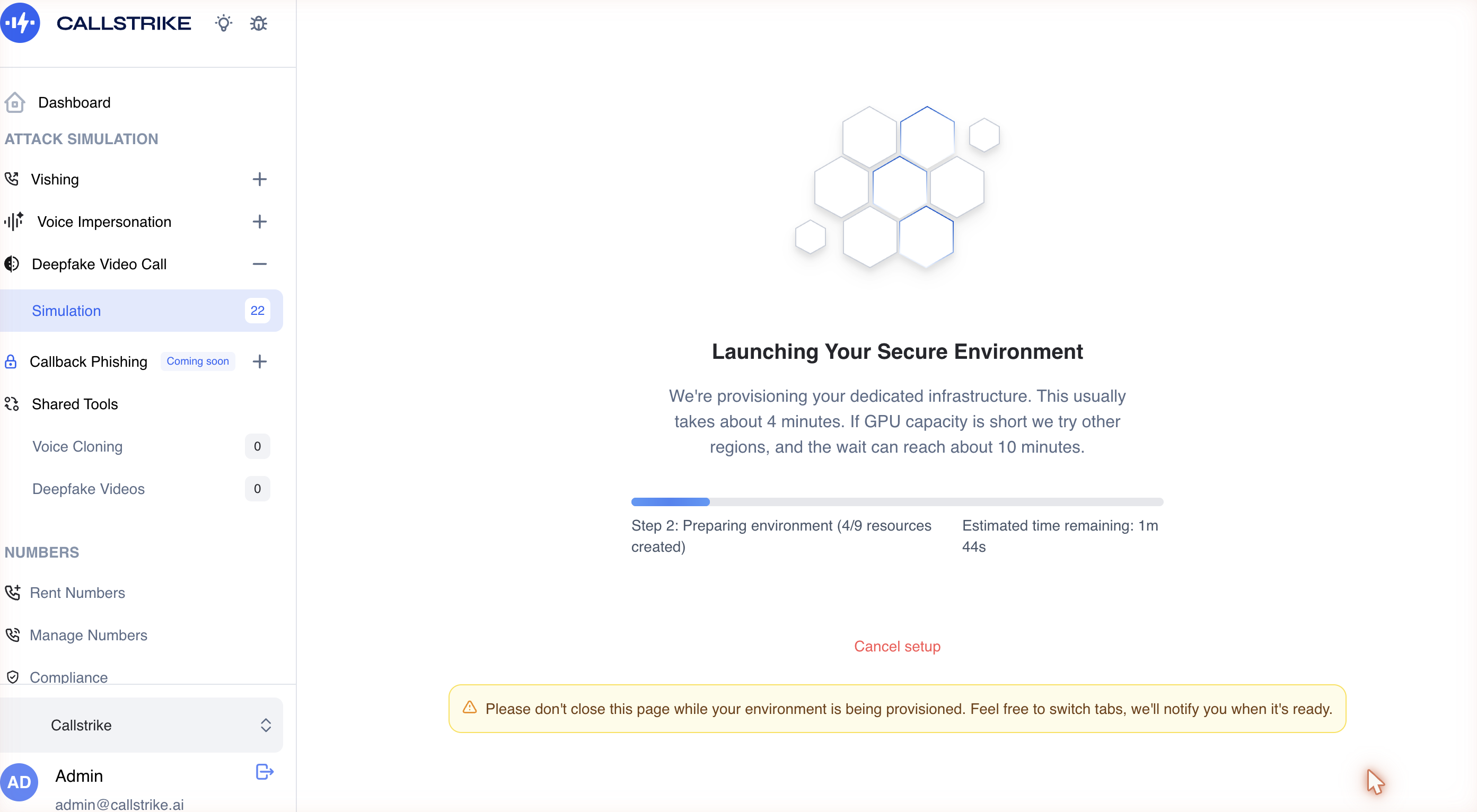
Those numbers are measured, not estimated, and the spread is real rather than a safety margin: about half of launches are quick, and about a quarter take the long path. Plan the exercise around the long one. If you have told a target to expect a call at ten past, launch at the hour.
⚠ Do not close the tab. Leaving the page tears the session down. If it has already produced a recording the session is ended; otherwise it is cancelled outright. There is no pause.
3. Configure the session
Three numbered steps, in order. You can go back to any of them from the same screen.
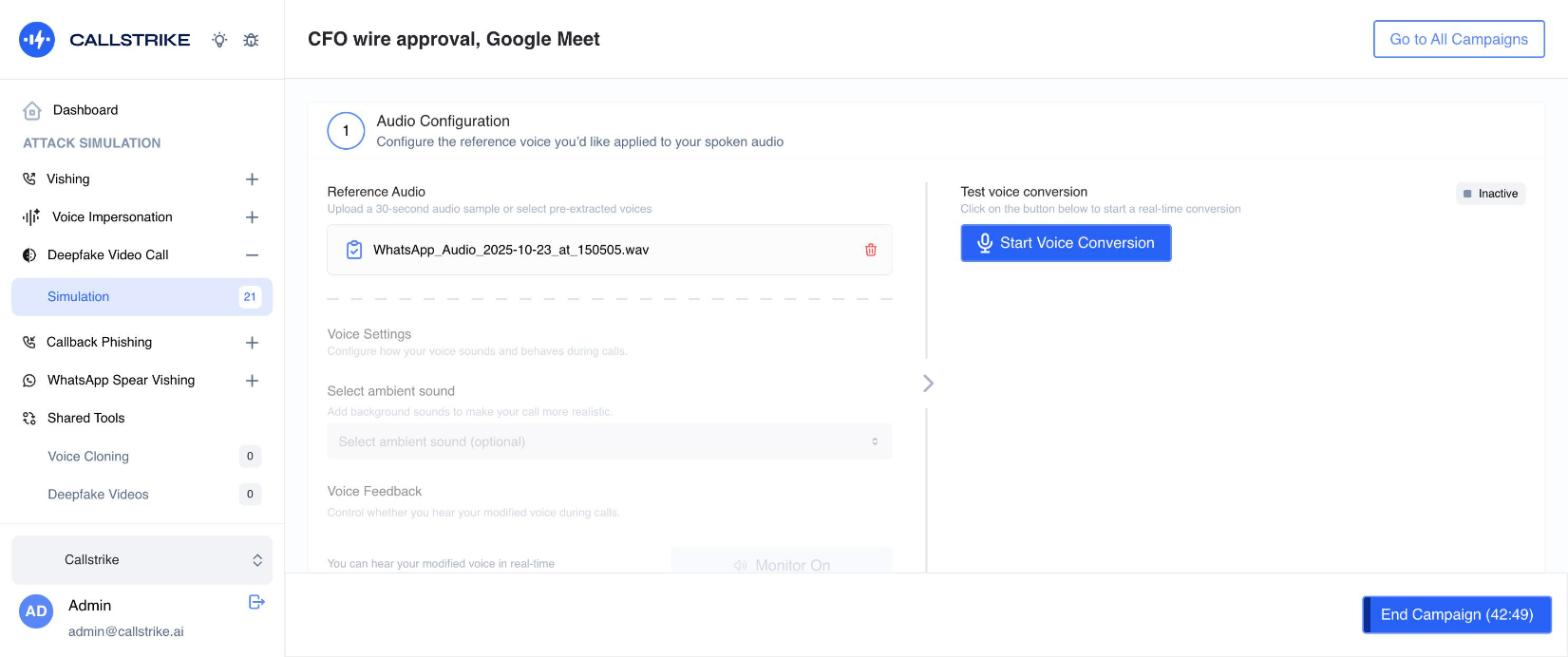
Step 1: Audio Configuration
Choose the voice the target will hear. This is the persona's voice, not yours: your speech is converted on the way out.
Test it before you go any further. The voice is the half of the impersonation people notice first, and a voice that does not fit the face and title you have chosen is worth catching now rather than in the first ten seconds of a call.
Step 2: Video Setup
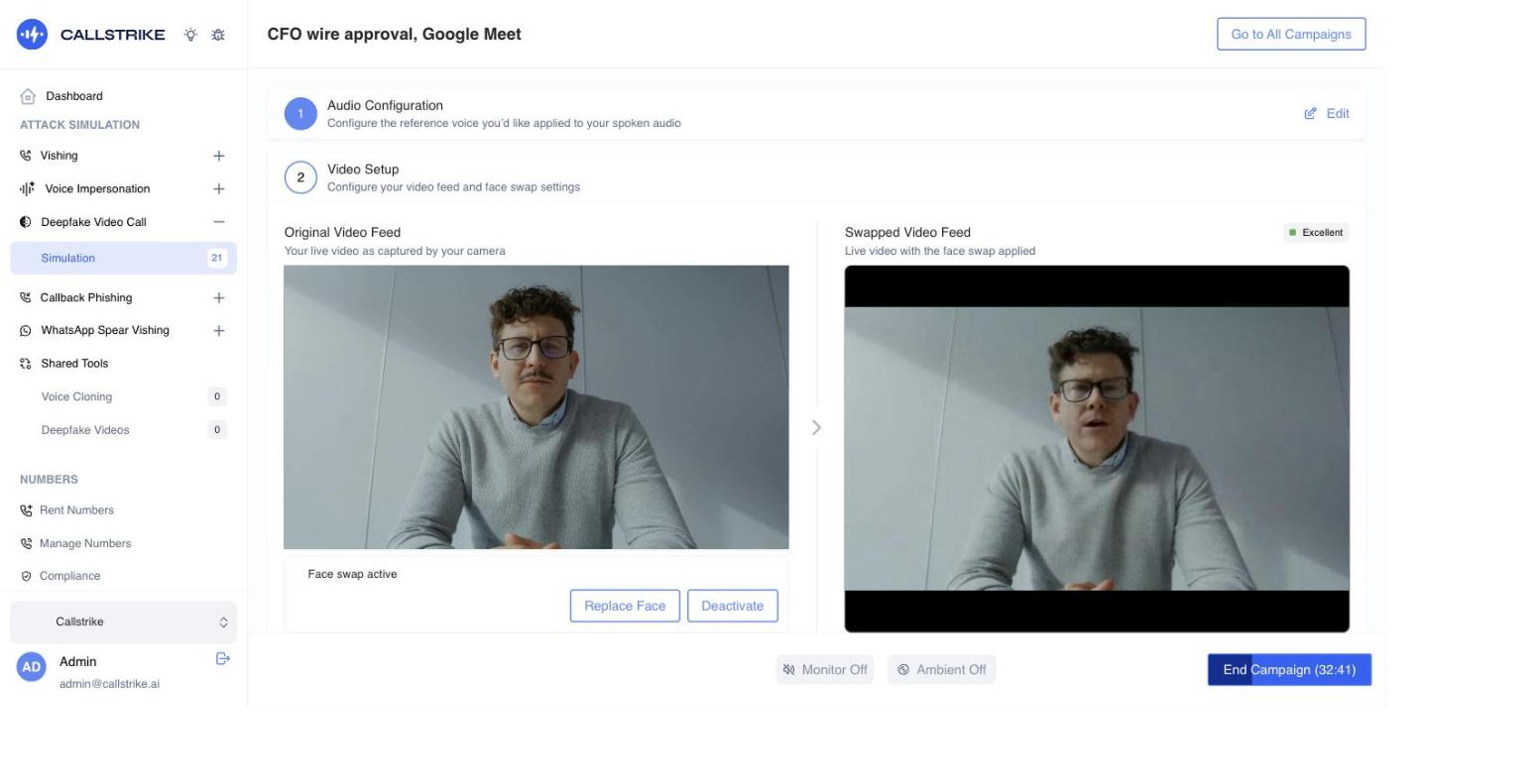
Upload the face the target will see, and start the swap. Activation takes roughly half a minute to a minute, and the preview shows you the result before anyone else sees it.
⚠ Skipping the face swap does not fall back to your own camera. It leaves no camera at all. The swap is what produces the video the meeting application picks up, so with it off the application finds nothing to send and the target sees a blank tile. Audio is separate and is unaffected. If you continue past this step without an active swap, the console warns you, and the warning means what it says.
Step 3: Ready to Launch
The last check before the meeting application opens. After this you are looking at the channel, and the channel pages take over.
4. The call
The meeting application fills the screen, with a control rail beside it. The application is running on the session, not on your machine: you drive it with your mouse and keyboard, and it has no address bar and no tabs.
The first time you use a channel, a short guide opens over it pointing at the one control that gets you into the meeting. It can be reopened at any time from the session footer.
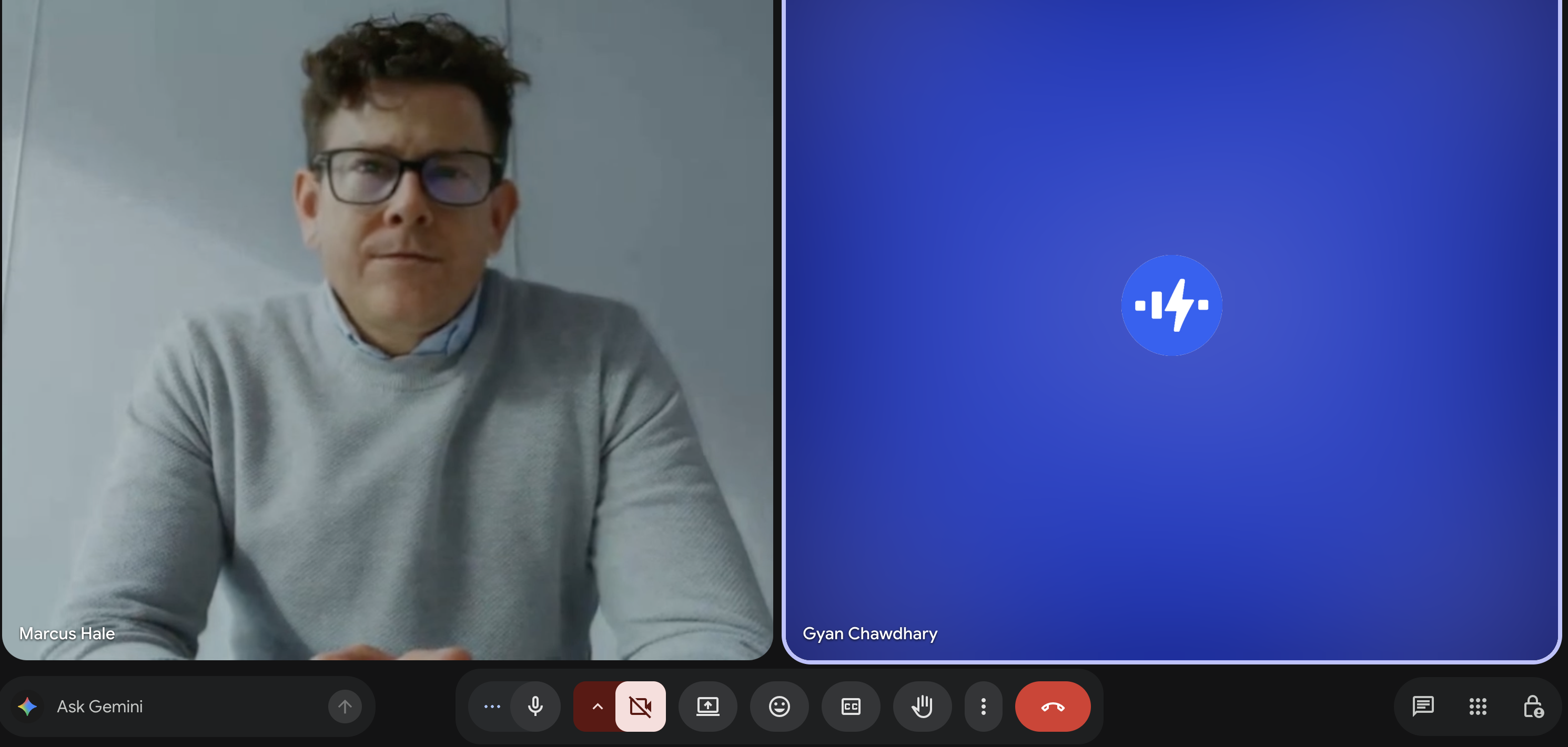
Everything above is your side of the call. This is the other side, which is the side that decides whether the exercise works: the persona is simply another participant, on camera, under whatever name was typed at join.
The rail
The rail is what separates a simulation from an impersonation. It is how you stop being the persona, on purpose, in front of the target:
- My real face. Drop the swap, either instantly or as a four second transition. The transition is the one to use when the point is that the target watches it happen.
- My real voice. The same, for the voice. The two are independent, so you can keep the face and drop the voice, or the reverse.
- Split screen and side by side. Show both faces at once, labelled, rather than replacing one with the other.
- AI disclosure. Put a notice on the outgoing video.
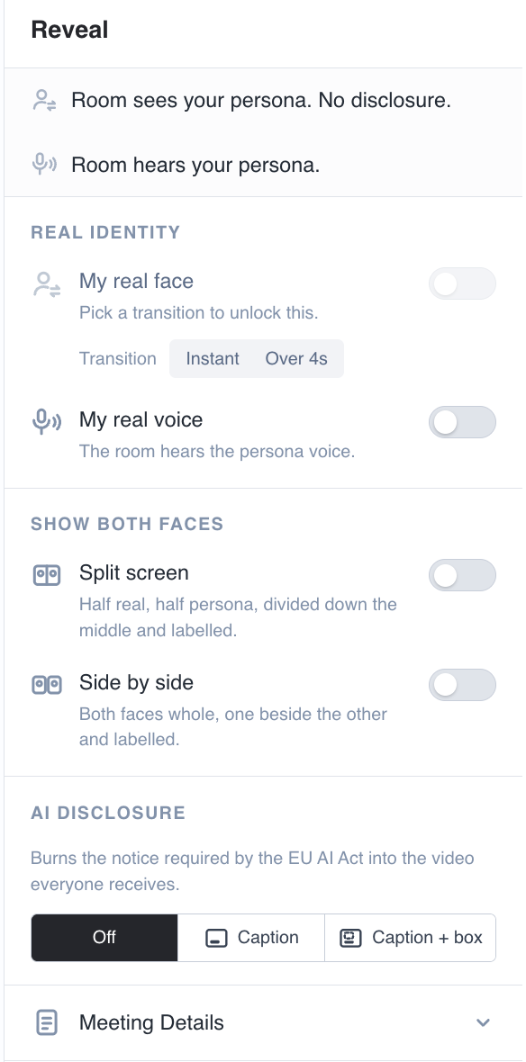
Turning the disclosure on changes what everyone else receives, not what you see. It is burnt into the outgoing video, so it survives into the recording and cannot be cropped out by the person watching:
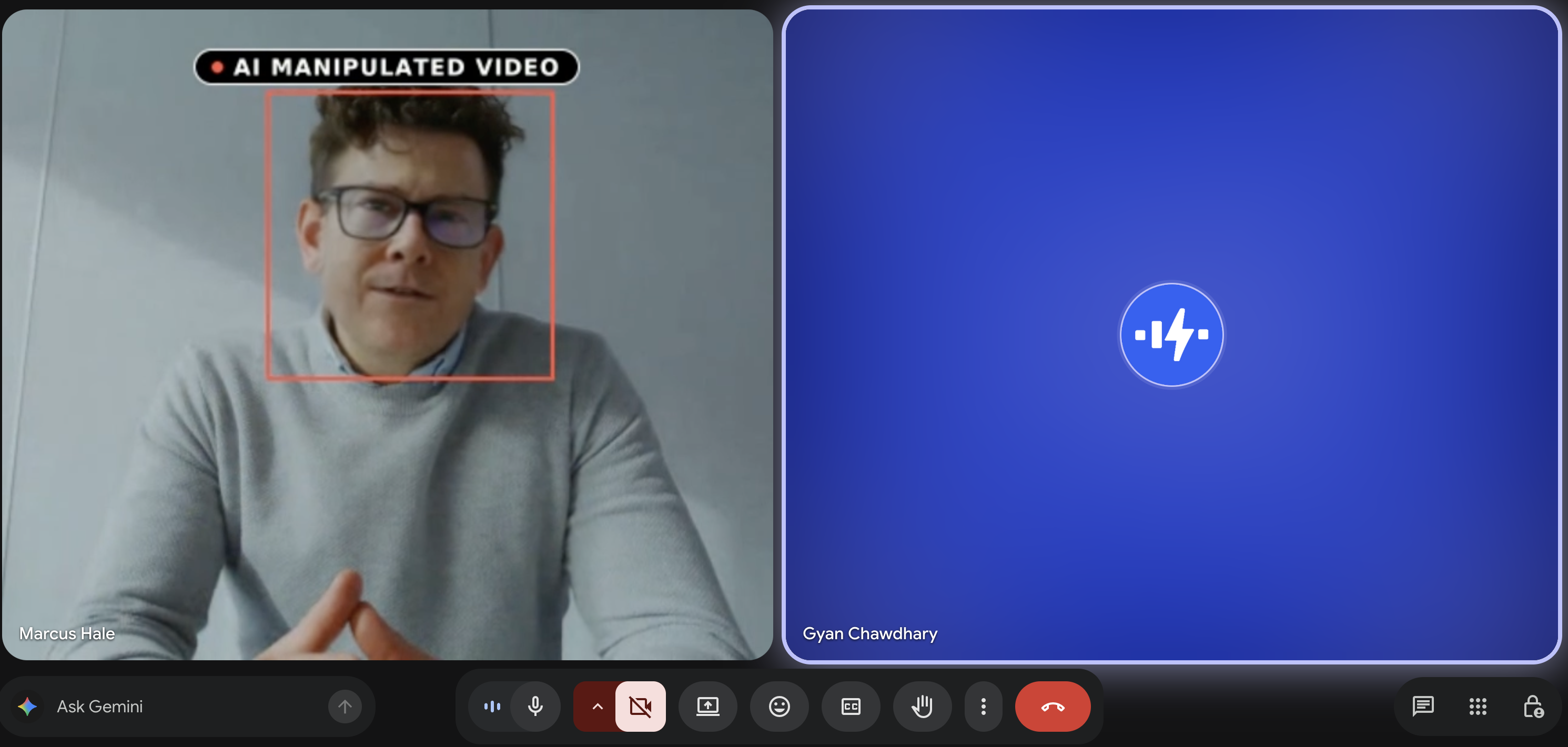
Decide before the call which of these you are going to use and when. A reveal that is fumbled live is worse for the debrief than one that is scripted, and in several jurisdictions the disclosure is not optional. See AI Act compliance.
If the call is being recorded, a REC marker sits on the video, and it is the same marker that is burnt into the recording.
5. Afterwards
End the session from the footer. Then, on the campaign, record what actually happened: the outcome, a vulnerability level, and a written observation. There is help available to draft the summary from the scenario and the outcome, which is worth using while it is fresh.
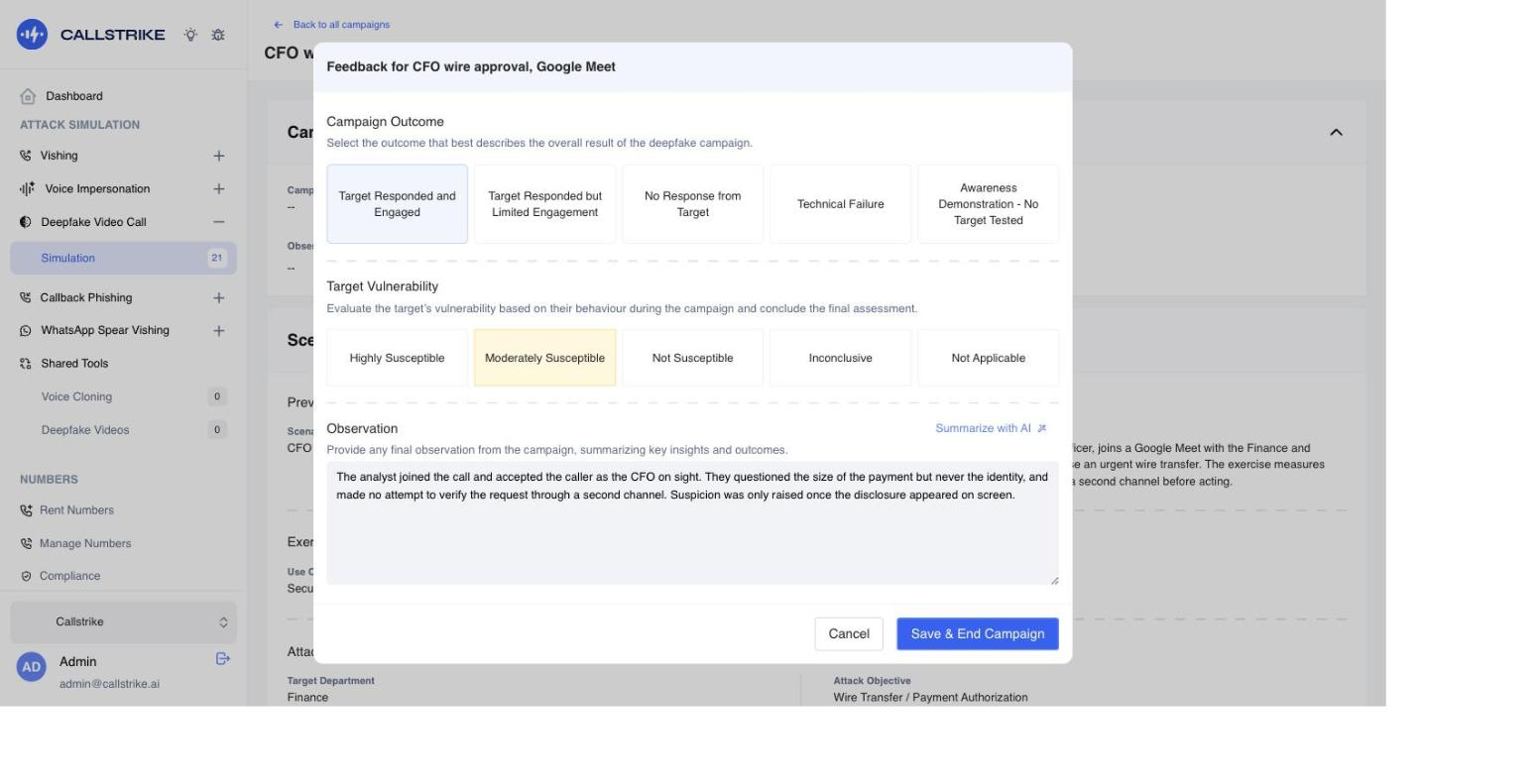
Recordings appear on the campaign's detail page, with a thumbnail and duration each. That page is what you take into the debrief.
What goes wrong, on any channel
The launch button will not start a session. Either the workspace is on a trial, or a deepfake or voice impersonation session is already running for it.
The wait ran past ten minutes. The session is still hunting for capacity. This is the tail of a real distribution rather than a fault, but if you are on the clock with a target, it is a reason to reschedule rather than to keep waiting.
The target sees a black tile. The face swap is not running. Go back to Video Setup and start it. This is the single most common cause, and the reason the warning at step 2 exists.
The voice is yours. The voice reveal is on, or the voice was never started at step 1.
The session vanished mid call. The tab was closed or navigated away from. There is no recovery: the session ends, and anything already recorded is kept.
Pick your channel
Microsoft Teams, Webex and GoTo Meetings are supported and work the same way as Zoom; they do not yet have a page of their own. The deepfake video call reference covers all nine.