Deepfake video calls on Zoom
Read How a deepfake video call runs first. This page covers only what is specific to Zoom.
Zoom is the default choice for most exercises, for the same reason it is the default choice for most attacks: a Zoom link in a calendar invite is unremarkable, and a face on a Zoom tile carries authority that the same words in an email do not. It is also the easiest channel to run, because you join as a guest with nothing to install and nothing to pair.
What you need before you launch
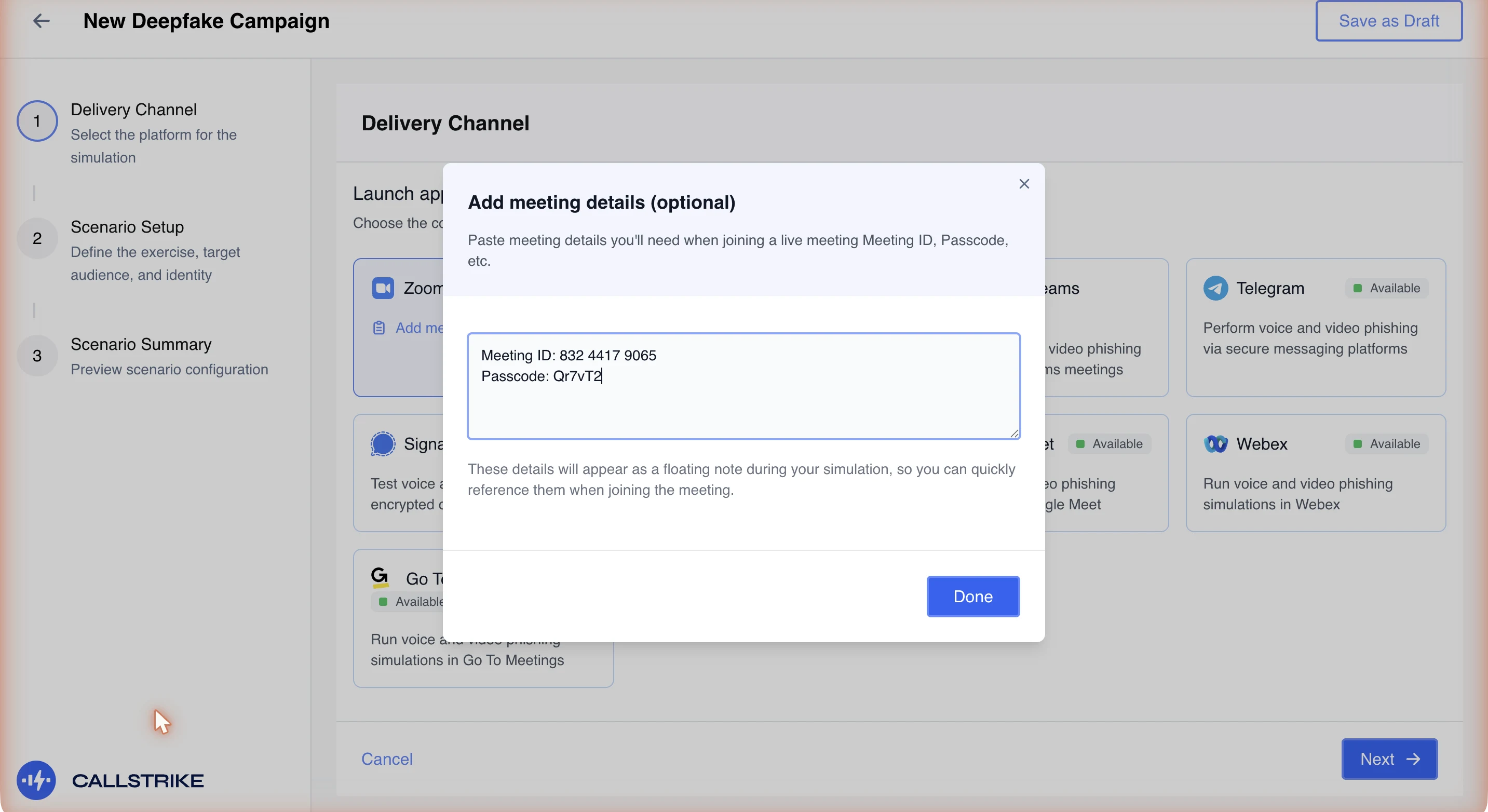
- The meeting's ID and passcode. Both, from the invite. Zoom shows the ID as three groups of digits and the passcode as a short alphanumeric string. Zoom asks for them on two separate screens, so have both to hand rather than just the link.
- A meeting a guest can join. See the meetings you cannot join below. This is worth checking before the exercise rather than during it.
Paste both into the meeting details note at the Delivery Channel step. The note is optional, but on Zoom it is worth using: you are about to be looking at a full-screen meeting application with no other tab to check, and the note follows you into the session.
Getting into the meeting
Zoom opens on its own front page and keeps the field you need one click away.
Zoom
Screens captured 25 August 2026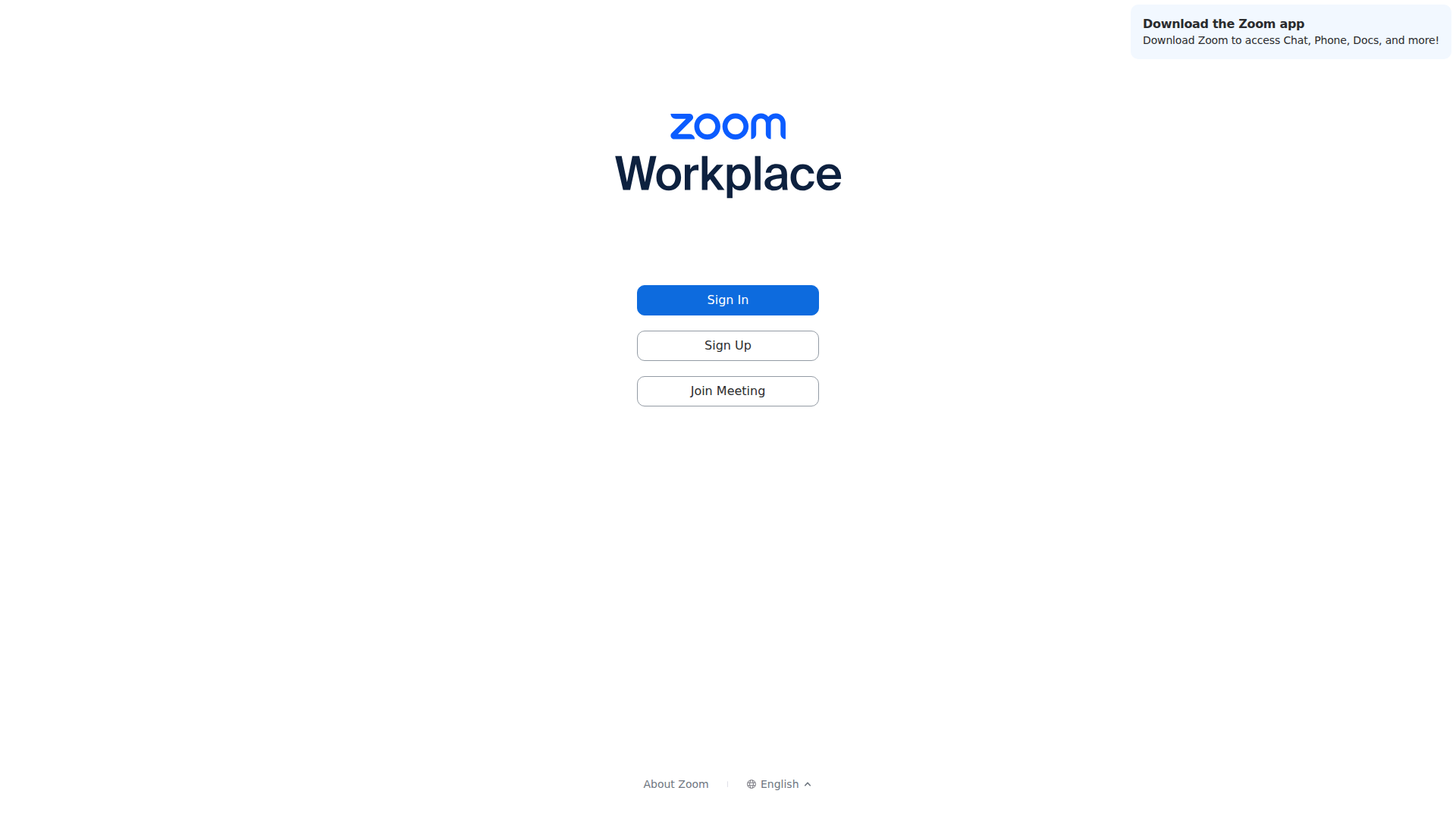
Step 1 of 2Choose Join Meeting
Click Join Meeting, the third button. Sign In is for a Zoom account you do not need.
Alternative: Sign In only if you are hosting the call from an account of your own.
Step 2 of 2Enter the meeting ID
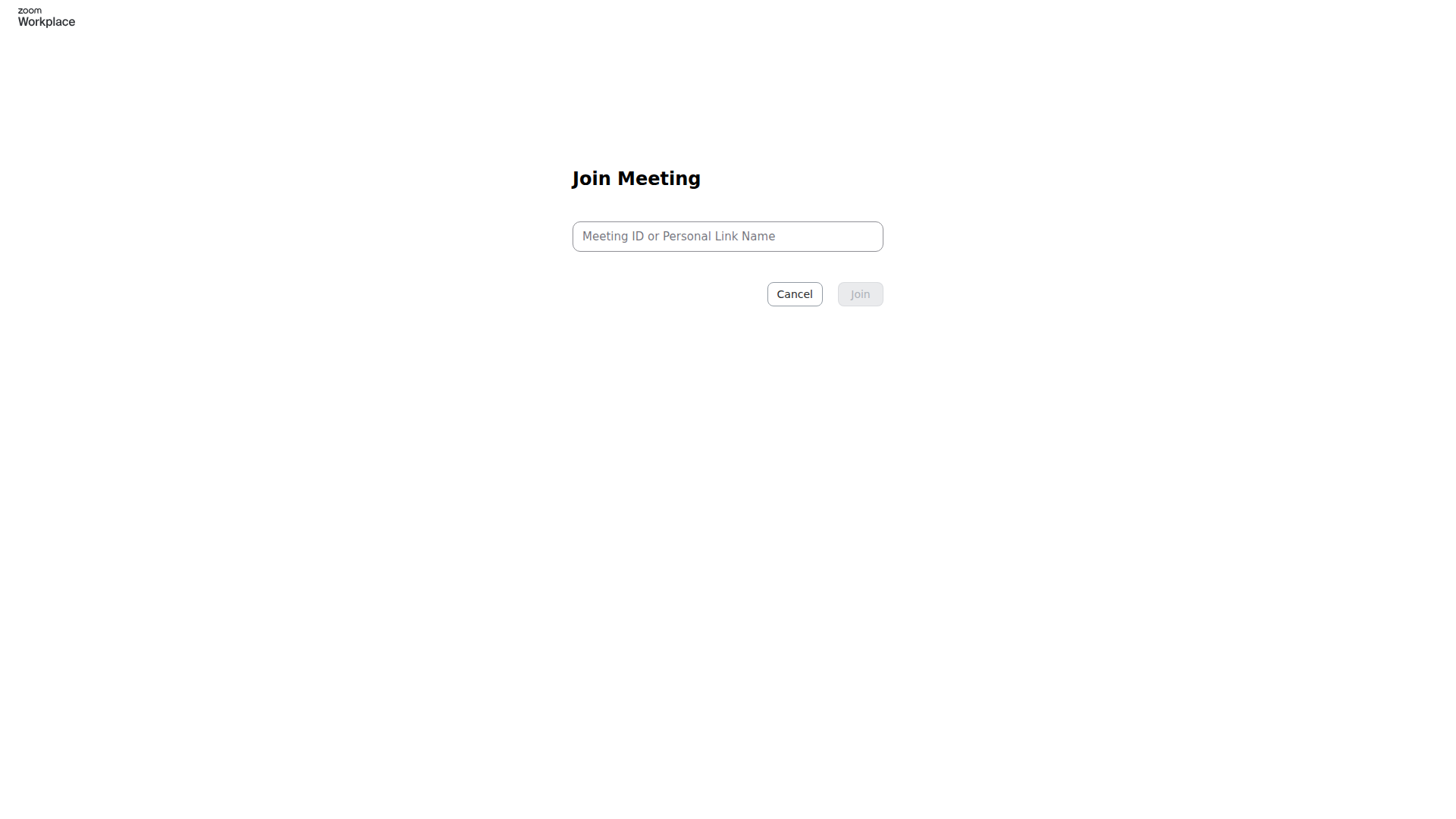
Type the meeting ID or personal link name from the invite, then click Join.
Alternative: The numeric ID from a Zoom invite link works here without the rest of the URL.
Both screens are shown because the first one does not have anywhere to type. This is the commonest way an operator loses their first thirty seconds.
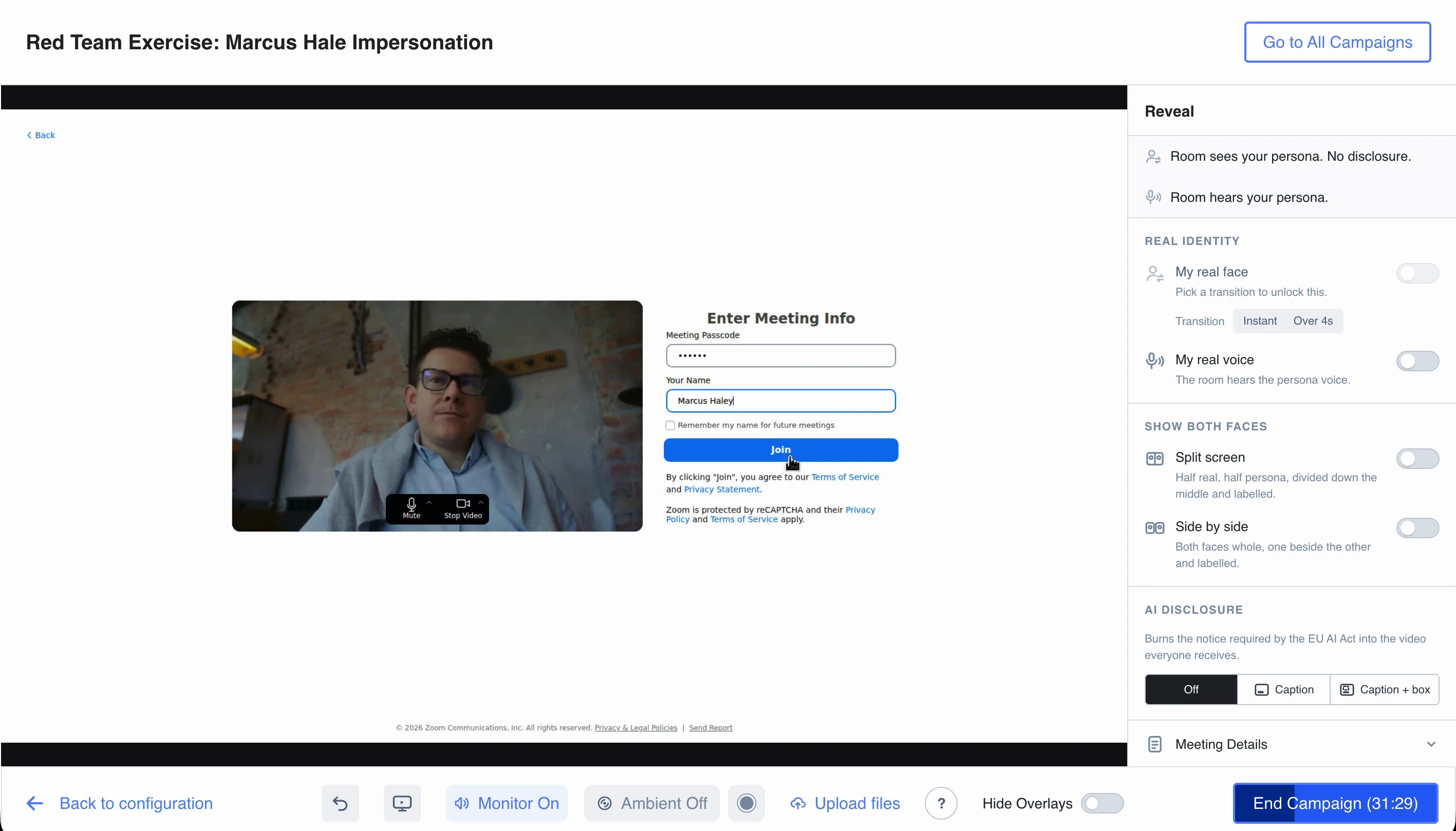
Entering the meeting ID does not put you in the meeting. Zoom then asks for the passcode and a display name on a second screen, and only the button on that screen joins the call.
The name the target sees
Zoom asks for a display name as you join, and that name is what appears under your video for everyone in the meeting. It is not taken from the campaign: the impersonated identity you filled in at Scenario Setup drives the exercise and the report, not the meeting tile.
Type the persona's name, spelled the way the target sees it in their own directory. A face that is right with a name that is wrong is a worse combination than either alone, because it gives the target something concrete to point at.
The meetings you cannot join
Zoom lets a host restrict a meeting in ways that no amount of pasting will get past:
- Authenticated attendees only. The meeting requires a signed-in Zoom account, sometimes one on the organisation's own domain. The session joins as a guest, so it is refused.
- A waiting room. You are held until someone admits you. Not a blocker, but it means a human decides whether your exercise happens, and it is worth knowing whether that human is in on it.
- Registration required. The meeting is not joinable from an ID at all.
If the meeting you have been given is restricted, the fix is to change the meeting rather than the campaign: have the exercise's own meeting created without those settings. Trying to work around a host restriction is a good way to spend the session on the wrong problem.
Recording on Zoom
Zoom announces its own recording to participants, and the platform records separately with a REC marker on the video. Those are two different recordings with two different consent implications, and in most jurisdictions the target's consent to the exercise is what covers both. Settle that with whoever authorised the exercise, before the call.
Running the call
Once you are in, Zoom behaves exactly as a target expects, which is the point. Two things to have straight before you speak:
- Pin nothing, share nothing. Screen sharing from the session is not what this exercise is for, and it is a fast route to showing the target something you did not intend.
- Know your reveal. The face and voice controls are on the rail beside the meeting, and they are covered below.
The reveal controls
The rail beside the meeting is how the exercise ends. Everything on it changes what the room receives, immediately, and the line at the top of the rail always states what the room is currently getting, so you never have to infer it from the switches.
Pick a transition before you need it. The real face control stays inert until you choose either "Instant" or "Over 4s", and that is deliberate: an instant cut and a four second fade are different things to do to a room, and the old panel let a click pick one of them by accident. On a scheduled Zoom call with a colleague present, the four second transition tends to land better than the instant one, because the target sees it happen rather than noticing afterwards that something changed. While a timed transition runs, the rail counts it down and says "Mid-transition. Flip back to reverse it.", so you can change your mind part way.
The two "show both faces" controls answer different questions and cannot both be on:
- Split screen cuts one face down the middle, half real and half persona. It is dramatic, and it is the thing itself.
- Side by side gives the room two complete faces to look between, so it shows what the swap actually changed.
Both are labelled in the outgoing video, so the room can tell which half is which without being told.
AI disclosure
The disclosure setting burns the notice required by the EU AI Act into the video everyone receives. It has three positions:
- Off. Nothing is added to the frame.
- Caption. A caption reading "AI-manipulated video" across the video.
- Caption + box. The same caption, plus a box drawn around the swapped face. This one needs the face swap running, and falls back to the plain caption without it.
The notice is burned into the outgoing frame rather than drawn in your own window, so it reaches everyone in the meeting whatever client they are on. Read AI Act compliance for when the notice is required rather than optional.
What goes wrong
The meeting ID is rejected. Check you have the ID and not the passcode, and that you have all of the digits. A Zoom invite link carries the ID inside it; the digits alone are enough.
You entered the ID but you are not in the meeting. Entering the ID only gets you as far as the passcode and name screen. Fill both in and press the join control there.
You are held in a waiting room and never admitted. The host is not expecting a guest with that name. This is a scheduling problem, not a product one.
You joined but the target sees no video. The face swap is not running. That is the shared failure, and it is covered in configuring the session.
Zoom asks you to sign in. The meeting is restricted to authenticated attendees. See above.
Related
- How a deepfake video call runs
- Google Meet, the other scheduled-meeting channel
- AI Act compliance